Preloading fonts ensures your website’s custom fonts load faster and display correctly, improving both performance and user experience. Without preloading, browsers delay font downloads, leading to issues like invisible text or layout shifts. Adding a <link> tag with rel="preload" in your HTML helps the browser prioritize fonts early, reducing delays and visual glitches.
Key Benefits of Font Preloading:
- Speeds up Largest Contentful Paint (LCP) by preloading fonts alongside critical assets.
- Reduces Cumulative Layout Shift (CLS) by preventing fallback font swaps.
- Improves readability and keeps users engaged by avoiding invisible text (FOIT).
Implementation Tips:
- Use the WOFF2 format for better compression and faster loading.
- Add the
crossoriginattribute to avoid duplicate downloads. - Preload only fonts used above the fold to save bandwidth.
- Pair preloading with
font-display: optionalto minimize layout shifts.
Example Preload Tag:
<link rel="preload" href="/fonts/main.woff2" as="font" type="font/woff2" crossorigin>
Preloading fonts is a simple yet effective way to improve your site’s performance, reduce bounce rates, and enhance the user experience.
Technical Benefits of Font Preloading
How Font Preloading Reduces Cumulative Layout Shift (CLS)
Cumulative Layout Shift (CLS) tracks how much visible content moves around while a page loads. One common cause of these shifts is when a browser initially displays fallback text before the custom font is ready. If the fallback and custom fonts differ in size or style, this can lead to noticeable layout disruptions, hurting your CLS score.
Font preloading solves this issue by making your custom font available right from the start. This ensures the browser can render text correctly during the first paint, avoiding font swaps and minimizing layout changes. Pairing preloading with font-display: optional is especially effective. As Houssein Djirdeh, a Software Engineer at Google, explains:
Combining
<link rel="preload">withfont-display: optionalis the most effective way to guarantee no layout jank when rendering custom fonts.
In Chrome 83 and later, preloaded optional fonts are rendered with a delay of up to 100 milliseconds. This delay helps prevent layout shifts, keeping your page visually stable. Next, let’s look at how font preloading impacts load times.
Font Preloading and Load Times
Normally, browsers wait until they parse the CSS to request fonts. This delay pushes font loading to the back of the critical request chain, slowing down your page.
Preloading fonts changes this process. By preloading, you move font requests to the very start of the loading sequence, allowing the browser to fetch fonts at the same time as stylesheets. This is a game-changer for improving metrics like Largest Contentful Paint (LCP). Without preloading, text can remain invisible while waiting for the font to load, delaying LCP.
A performance case study by DebugBear highlights this benefit. On one website, the <h2> text - its LCP element - stayed invisible until the font loaded. Preloading the Open Sans WOFF2 file alongside the CSS reduced the LCP from 1.82 seconds to 1.24 seconds. This improvement not only speeds up load times but also boosts user engagement and reduces bounce rates.
Optimize web fonts loading and rendering with preloading and font-display to improve loading speed
Font Loading Techniques Compared
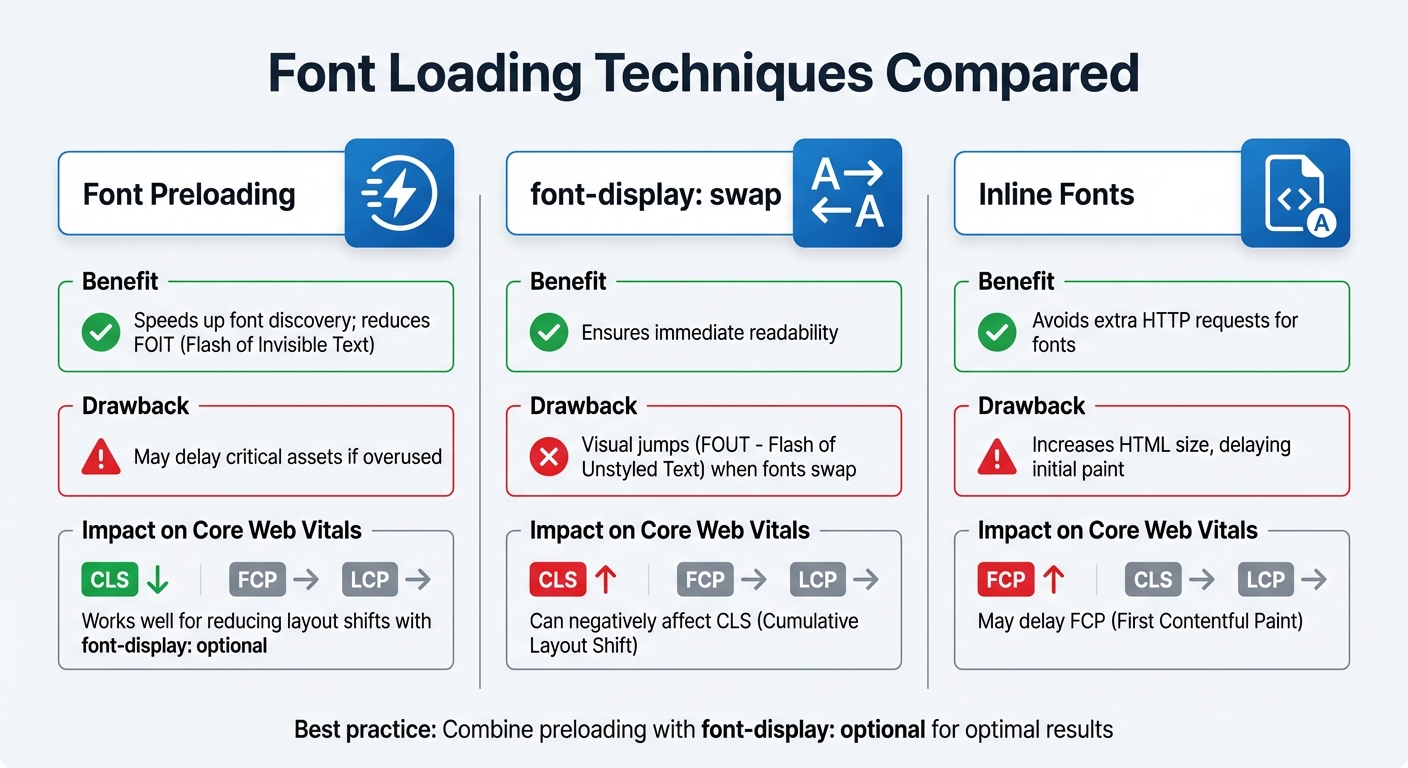
Font Loading Techniques Comparison: Preloading vs font-display vs Inline Fonts
Font Preloading vs. font-display: swap vs. Inline Fonts
When it comes to optimizing font loading, there are three main techniques to consider: font preloading, font-display: swap, and inline fonts. Each approach has its own strengths and weaknesses, and the right choice depends on your site's performance goals and priorities. Here's a breakdown of how they work and their trade-offs.
Font preloading tells the browser to fetch font files early - often even before the CSS is fully parsed. This helps avoid both Flash of Invisible Text (FOIT) and Flash of Unstyled Text (FOUT). The downside? Overusing preloading can hog bandwidth, potentially delaying other critical resources like CSS or JavaScript.
The font-display: swap approach ensures that the text is immediately readable by using a fallback system font. However, when the custom font loads, the visible "swap" can cause layout shifts, impacting Cumulative Layout Shift (CLS). It's worth noting that behavior varies by browser: Safari might hold off rendering text until the custom font is ready, while Chromium and Firefox typically display fallback text after a 3-second wait.
Inline fonts involve embedding @font-face declarations directly into the HTML <head>. While this eliminates extra HTTP requests, it increases the size of your HTML, which can delay the First Contentful Paint (FCP). This technique is a trade-off between fewer requests and a heavier initial page load.
| Technique | Benefit | Drawback | Impact on Core Web Vitals |
|---|---|---|---|
| Font Preloading | Speeds up font discovery; reduces FOIT | May delay critical assets if overused | Works well for reducing layout shifts with font-display: optional |
| font-display: swap | Ensures immediate readability | Visual jumps (FOUT) when fonts swap | Can negatively affect CLS |
| Inline Fonts | Avoids extra HTTP requests for fonts | Increases HTML size, delaying initial paint | May delay FCP |
For a balanced approach, consider combining preloading with a brief block period using font-display: optional. This method sets a short block period (around 100 milliseconds), ensuring that if the font isn’t ready almost immediately, it won’t swap at all - avoiding layout shifts.
Web performance expert Andy Davies sums it up well:
Preloading is a trade-off – when we explicitly increase the priority of one resource we implicitly decrease the priority of others.
sbb-itb-5be333f
How to Implement Font Preloading
Using the link rel="preload" Attribute
To preload fonts effectively, you need to add a <link> element in your HTML's <head> section. This element should include specific attributes to guide the browser. Setting rel="preload" tells the browser to fetch the font early, while as="font" identifies the resource type, ensuring it gets the right loading priority. This method can significantly improve load times and reduce layout shifts.
Here’s an example of a properly set up font preload:
<link rel="preload" href="/fonts/main.woff2" as="font" type="font/woff2" crossorigin>
The crossorigin attribute is essential because fonts are fetched using CORS in anonymous mode. Without this attribute, the browser might download the font twice. The type attribute specifies the MIME type, helping the browser avoid unsupported formats.
You can also implement font preloading through an HTTP header, as shown below:
Link: </fonts/main.woff2>; rel="preload"; as="font"; crossorigin
| Attribute | Purpose | Requirement |
|---|---|---|
rel="preload" |
Marks the resource for early loading | Mandatory |
href |
Specifies the path to the font file | Mandatory |
as="font" |
Defines the type of resource for proper prioritization | Mandatory |
crossorigin |
Ensures compliance with CORS for fetching the font | Mandatory |
type |
Indicates the MIME type for browser compatibility | Recommended |
Best Practices for Preloading Fonts
Once you’ve added preload links, there are a few best practices to keep in mind to ensure maximum performance. Focus on preloading only fonts used above the fold to save bandwidth and prevent delays in loading critical resources.
As experts from web.dev explain:
By preloading a certain resource, you are telling the browser that you would like to fetch it sooner than the browser would otherwise discover it because you are certain that it is important for the current page. – Houssein Djirdeh, Jeremy Wagner, and Milica Mihajlija, web.dev
Whenever possible, use WOFF2 format for your fonts. It offers up to 30% better compression compared to WOFF and is supported by most modern browsers. Avoid preloading multiple formats for the same font file. If you’re serving different fonts for mobile and desktop, use the media attribute to preload fonts responsively:
<link rel="preload" href="/fonts/mobile.woff2" as="font" type="font/woff2" crossorigin media="(max-width: 600px)">
To further optimize performance, pair preloading with the font-display: optional property in your CSS. This approach minimizes layout shifts and prevents flashes of invisible text (also known as FOIT). Make sure the URL in your preload tag’s href matches exactly with the URL in your @font-face declaration. If a preloaded resource isn’t used within about three seconds of page load, Chrome will issue a warning in the console.
Common Mistakes and How to Avoid Them
Overloading the Preload Queue
When you overload the preload queue, resources end up competing for limited bandwidth, which can delay critical assets. Essentially, trying to prioritize too many resources can result in none of them being delivered efficiently.
Take this example: preloading 38 fonts on Ghost caused delays in loading the LCP (Largest Contentful Paint) image. Simply removing one extra JavaScript preload shaved 0.9 seconds off the rendering time.
The fix? Stick to preloading one or two essential fonts - those that are used above the fold. Focus on fonts for your primary body text or main headings, not every weight or style variant. Tools like Lighthouse or Chrome DevTools can help you verify that preloaded resources are loading within three seconds.
Using the Wrong Font Formats
Using outdated font formats can also drag down performance. For example, preloading legacy formats like WOFF 1.0 or TTF increases file sizes and slows down text rendering. Instead, opt for WOFF2, which offers about 30% better compression.
Bram Stein, a font expert, suggests sticking exclusively to WOFF2. This simplifies your CSS and avoids unnecessary downloads. Since modern browsers have supported WOFF2 since 2015, there’s little reason to rely on older formats. To ensure the browser handles the resource correctly, always include type="font/woff2" in your preload tag.
Conclusion
Key Takeaways
Here's a quick summary of the main points:
Font preloading improves both SEO and user experience by loading fonts early. This approach eliminates FOIT (Flash of Invisible Text) and FOUT (Flash of Unstyled Text), which helps maintain strong Core Web Vitals metrics.
By speeding up the Largest Contentful Paint (LCP) and reducing Cumulative Layout Shift (CLS), preloading ensures smoother page performance. It prevents layout shifts caused by font swaps, leading to a more stable and polished user interface.
When implementing fonts, always include the crossorigin attribute. This avoids duplicate font downloads and aligns with best practices for efficient text rendering. Stick to the WOFF2 format - it offers better compression and works well across modern browsers .
Use only WOFF2 and forget about everything else. This will simplify your CSS and workflow massively and also prevents any accidental double or incorrect font downloads.
– Bram Stein, 2022 Web Almanac
To maximize efficiency, preload just one or two above-the-fold fonts. This prevents bandwidth issues and keeps your site running smoothly. Font preloading is a straightforward optimization that enhances speed, stability, and search rankings.
FAQs
How does preloading fonts enhance website performance and user experience?
Preloading fonts plays a crucial role in improving key performance metrics like Largest Contentful Paint (LCP) and Cumulative Layout Shift (CLS). By letting the browser load essential font files earlier in the page load process, it reduces delays in rendering text and prevents layout shifts caused by font swapping.
When critical fonts are immediately available, it boosts your website's visual stability and provides users with a smoother, faster experience. Plus, since search engines prioritize faster loading times and stable layouts, preloading fonts can indirectly help improve your SEO performance.
What are the best practices for preloading fonts?
To make the most of font preloading, focus on the essential web fonts needed for your website's initial display. This helps avoid delays like the flash of unstyled text (FOUT) and boosts performance. Stick to preloading fonts that are critical for above-the-fold content to save bandwidth and keep your site running smoothly.
You can also streamline font loading by using @font-face to include only the necessary subsets or styles. This reduces file sizes and speeds up rendering. By preloading fonts with rel="preload", the browser fetches them earlier, cutting down load times and preventing layout shifts caused by late font rendering.
Preloading fonts thoughtfully ensures text appears quickly and smoothly, creating a better experience for users right from the start.
What are the best practices to avoid mistakes when preloading fonts?
To sidestep common pitfalls when preloading fonts, focus on loading only the essential font files required for the initial page view. This minimizes unnecessary downloads and boosts page load speed. Use the <link rel="preload"> tag paired with the font-display: optional property to avoid layout shifts or the dreaded flash of invisible text (FOIT).
Steer clear of preloading bulky font files that include every glyph and style. Instead, consider font subsetting to load just the characters and styles you actually need. Also, make sure your stylesheets are not render-blocking, as this can delay text rendering and cause issues like FOUT (flash of unstyled text), which can hurt the user experience.
Lastly, test your setup on various browsers since font loading can behave differently across platforms. Tools like Web Font Loader can help you achieve consistent performance everywhere.