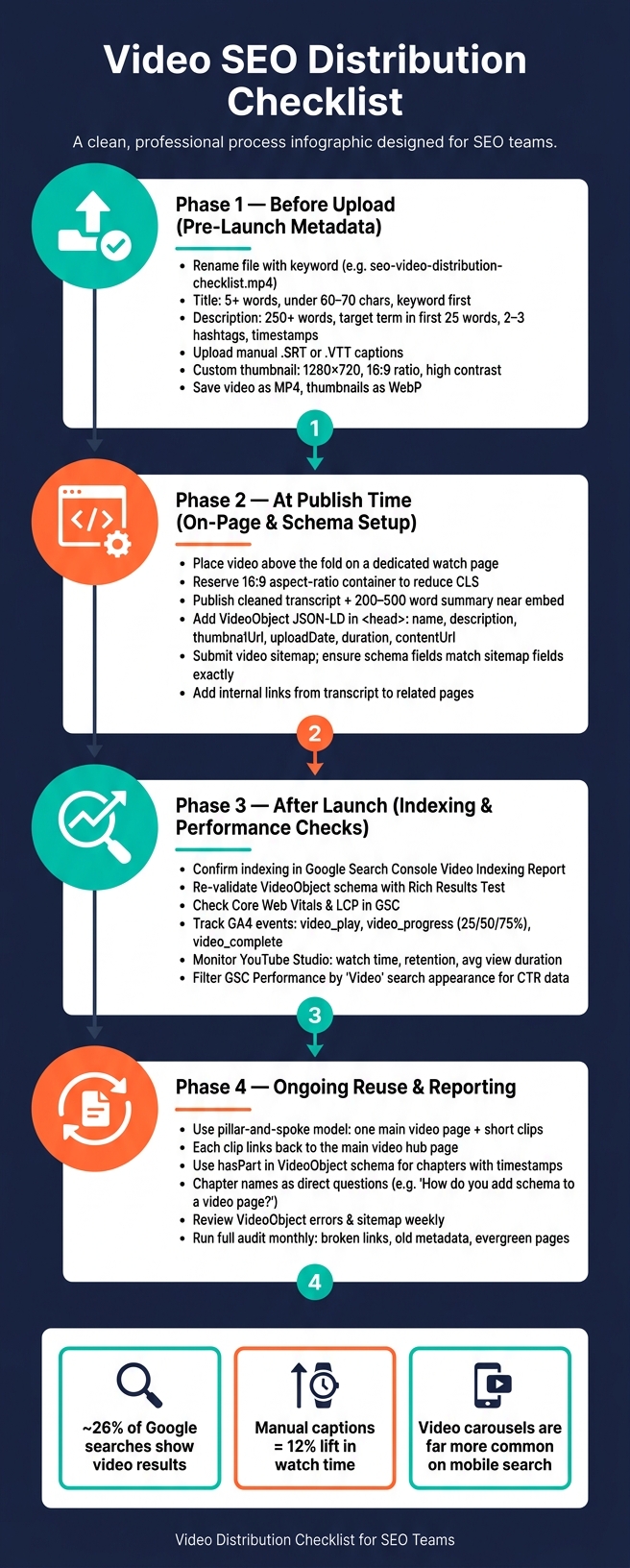
If I want more search visibility from video, I need to do 3 things right: set up metadata before upload, make the page easy for Google to read at publish time, and check indexing plus engagement after launch.
The article’s core point is simple: video distribution is not just posting to YouTube. It includes titles, descriptions, captions, thumbnails, watch pages, transcripts, schema, sitemaps, internal links, and post-launch tracking. That matters because video appears in about 26% of Google searches, and video carousels are far more common on mobile search results.
Here’s the short version of what I’d take from it:
- Before upload: name the file well, write a keyword-led title, add a long description, upload manual captions, and use a custom thumbnail
- At publish time: put the video high on a dedicated page, add transcript text and nearby copy, and link to related pages
- For search setup: add
VideoObjectschema, keep sitemap fields aligned with page data, and use chapters or clips with clean labels - After launch: check Google Search Console, test schema again, track watch time, and review on-site video events in GA4
- For reuse: turn one long video into short clips, but keep one main video page as the hub
What I like here is the workflow. It goes in the same order most teams work - prep, publish, check, improve. That makes it easy to use as a repeatable pre-publish and 30-to-60-day review list.
If I had to boil the whole piece down to one line, it would be this: video SEO works better when distribution, page setup, and reporting all match.
Video SEO Distribution Checklist: Pre-Launch to Post-Launch Workflow
YouTube Upload Checklist - Boost Your Video Rankings and Increase Video Views
sbb-itb-5be333f
1. Pre-Launch Metadata and Channel Setup
Finish these checks before the video goes live.
Core Video Metadata Checks
Start with the file itself. Before you upload, rename any generic filename to something clear and keyword-led, like seo-video-distribution-checklist.mp4.
Then tighten the main metadata. Use a title with 5 or more words and keep it under 60-70 characters. Put the primary keyword first, then the benefit or format, then the brand, using this structure: [Primary Keyword] - [Benefit or Format] | [Brand].
Your description needs more than a couple of lines. Write 250+ words of original copy, place the target term in the first 25 words, and include:
- 2-3 hashtags
- the landing page link
- chapter timestamps like
00:00 - Introand01:45 - Setup
Those timestamps can help support Key Moments in Google Search.
Captions matter too. Upload manual .SRT or .VTT files instead of relying only on auto-captions. They can help watch time, and they also make it easier for search systems to read technical terms and brand names.
For thumbnails, use a custom image at 1280×720 with a 16:9 aspect ratio. In plain terms, make it easy to read at a glance. High-contrast images, bold text, and expressive visuals tend to improve click-through rates.
Once those file-level signals are in place, make sure the channel setup follows the same topic logic so each upload fits a clear cluster.
Channel Organization and Technical Prep
After metadata is set, carry that topic structure into playlists, defaults, and file formats.
Build playlists around topic clusters that match your pillar content. That helps extend session watch time and gives YouTube a cleaner read on what the channel covers.
Before bulk publishing, set upload defaults for tags, categories, description templates, and stage labels using SEO marketing tools. For tags, use a mix of primary, long-tail, and branded terms.
Format also matters. Use 16:9 for desktop and YouTube. For mobile-first social distribution, use 9:16 or 1:1. Save video files as MP4 and thumbnails as WebP. WebP can help improve Largest Contentful Paint (LCP) compared with JPEG or PNG.
| Platform | Discoverability | Schema Control | Analytics Focus | Best For |
|---|---|---|---|---|
| YouTube | Massive (Search + Suggested) | Limited (Platform-side) | Watch time & Retention | Brand awareness & Reach |
| Vimeo | Moderate (Professional) | High (On-site embed) | Ad-free engagement | Professional portfolios |
| Wistia | Low (Internal) | High (On-site embed) | Lead-gen & Heatmaps | B2B Marketing & Sales |
| Native/Self-Hosted | Zero (Platform-wise) | Total (Full JSON-LD) | Custom/Server-side | Enterprise & Sensitive content |
Last, check the site setup before you move on. Confirm that robots.txt does not block media directories and that the player includes an HTML fallback. Then you’re ready for embeds, transcripts, and internal links.
2. On-Page Embeds, Transcripts, and Internal Links
Embed Placement and Page Performance Checks
Once metadata and channel setup are done, the page itself needs to help both indexing and engagement.
Google's guidance leans toward dedicated watch pages where the video is the main focus, with the player near the top and the video as the largest element on the page. Put the player above the fold and make it the biggest thing users see first. If the video is buried lower on the page or hidden in tabs, indexing tends to be less reliable.
Before the player loads, reserve space with a 16:9 aspect-ratio container to cut down on Cumulative Layout Shift (CLS). Load video scripts asynchronously so they don't block rendering. And if you lazy-load the player, make sure the VideoObject data and transcript text appear in the HTML first.
Once the player is loading the right way, shift to the transcript and nearby copy.
Transcript and Surrounding Copy Checks
Publish a cleaned transcript plus a 200-500 word summary near the embed. Structure the transcript so it's easy to scan:
- Use H3 headings for major sections
- Add timestamps for navigation
- Include speaker labels when more than one person appears on screen
Clean transcripts help with answer extraction in AI-powered search. If length is a UX issue, place the transcript inside a collapsible section. The text can still be indexed.
After that text layer is set, connect the video page to related pages with internal links.
Internal Link Checks Around the Video
The transcript is one of the strongest spots for internal links. Link to related articles, product pages, and service pages when those topics come up in the video. That helps reinforce topical relevance and gives users a natural next click.
On longer video pages, add a "Related resources" sidebar or a jump-link table of contents so people can move around without endless scrolling. Treat the video page like a hub. Links in the transcript and nearby copy should move users to the next logical page in the topic cluster.
Use a lite embed when page speed and schema control both matter.
3. Schema, Video Sitemaps, and Clip Reuse Rules
VideoObject and Page-Level Schema Checks
Once the embed, transcript, and internal links are live, turn those page signals into schema. Add structured data so crawlers can identify the video, thumbnail, and key moments.
Place VideoObject JSON-LD in the <head> of the page that hosts the video. Include name, description, thumbnailUrl, uploadDate, duration, and either contentUrl or embedUrl. Format duration and uploadDate in ISO 8601. For example, use PT2M30S for a 2-minute, 30-second video. If thumbnailUrl is missing or broken, a rich snippet may not trigger.
Add transcript for full-text context and hasPart for chapters or key moments. Then validate the markup with the Google Rich Results Test and review the Video Indexing report in Google Search Console.
Video Sitemap and Consistency Checks
A dedicated video sitemap tells Google where your video assets live and what they include. Submit it in Search Console to help speed up indexation.
The main check here is simple: consistency matters. The values in your sitemap should match your VideoObject schema and on-page copy exactly. If the title in the sitemap doesn't match the name in your JSON-LD, you're sending mixed signals. That can hold back indexing.
Schema Property (VideoObject) |
Video Sitemap Field | Consistency Rule |
|---|---|---|
name |
<video:title> |
Must match exactly |
description |
<video:description> |
Should stay close to the page copy; sitemap limit is 2,048 characters |
thumbnailUrl |
<video:thumbnail_loc> |
Must be identical; use a high-resolution thumbnail for both |
uploadDate |
<video:publication_date> |
Must match exactly in ISO 8601 format |
duration |
<video:duration> |
Schema uses ISO 8601, such as PT1M54S; sitemap uses seconds |
contentUrl / embedUrl |
<video:content_loc> / <video:player_loc> |
Must point to the same source file or player URL |
Clip Reuse and Internal Navigation Checks
Use a pillar-and-spoke model: one main long-form video, backed by short clips that answer one question each. Each clip should link back to the main video page so authority stays with that main page.
When a clip doesn't need its own page, use the hasPart property inside the main video's VideoObject schema to define segments with exact start and end timestamps. That gives AI engines a way to deep-link to a specific moment right from search results, without a separate URL.
Chapter names should be direct questions. For example: "How do you add schema to a video page?" That makes matching user queries easier for AI tools.
Keep one primary video per page. If you put multiple important videos on the same page, the indexing signal gets split, and each video has a lower chance of ranking. Keep clips narrow in scope, link them back to the full asset, and let the schema handle discovery.
After the clips are live, move to indexing and performance checks in the next section.
4. Post-Launch Monitoring and Reporting
After launch, check crawlability first. Then use performance data to see whether distribution is doing its job.
Indexing and Technical Health Checks
Start by making sure Google indexed the page and can render the video. In Google Search Console's Video Indexing Report, confirm the page is indexed and eligible for video results.
Next, run the Google Rich Results Test again after launch to confirm the VideoObject schema is still valid. After that, review Core Web Vitals in GSC and make sure the embed hasn't dragged down page speed or LCP.
Channel and On-Site Performance Checks
If indexing looks good, move to engagement metrics. This is where you spot the weakest part of the funnel.
In YouTube Studio, check watch time, average view duration, and retention first. If retention falls off in the first 30 seconds, that's a clear sign: trim the intro and get to the point sooner.
On the site side, set up GA4 event tracking for video_play, video_progress at 25%, 50%, and 75%, and video_complete. Then compare time on page between users who play the video and users who don't. In Google Search Console, filter Performance by the "Video" search appearance to see which queries are driving video impressions and how CTR looks.
Low CTR, weak retention, or a low play rate usually point to the same set of fixes:
- Revise the title
- Swap the thumbnail
- Tighten the opening
- Change the video placement on the page
| Channel | Key Metrics | Data Source |
|---|---|---|
| Google Search | Video impressions, clicks, CTR, indexing status | Google Search Console |
| YouTube | Watch time, retention rate, traffic source breakdown | YouTube Studio |
| On-site | Play events, dwell time, conversion rate | GA4 |
| Technical | Schema validity, Core Web Vitals, page speed | Rich Results Test, GSC |
Clip Expansion and Reporting Cadence
Use watch time and search visibility to decide which videos deserve clips, republication, or placement on more pages.
Review VideoObject errors and sitemap processing every week. Then run a broader audit each month using SEOptimer to catch broken links, old metadata, and evergreen-page issues that may have shifted since launch.
Use those reports to guide the tools workflow in the next section.
5. Tools and Final Checklist Summary
Tools and Directories That Support the Workflow
Use this stack to handle metadata, transcripts, schema, audits, and reporting.
No single tool does every part of video SEO, so it helps to sort the stack by job. For keyword research, lean on search metrics and bulk metadata tools. For transcripts and captions, use accurate transcription services. Videos with manual captions see a 12% lift in watch time compared with videos without them. That makes transcription a performance lever, not just an accessibility task.
For schema, automate VideoObject JSON-LD when you can, or use manual generators if needed. For technical audits, catch broken internal links and crawl issues before they start hurting rankings.
Top SEO Marketing Directory is a useful starting point for SEO tools, software, and agencies.
| Category | Recommended Tools |
|---|---|
| Keyword & metadata | YTCockpit, TubeBuddy, vidIQ, Ahrefs, SEMrush, YouTube Studio |
| Transcription & captions | Descript, Rev.com, Otter.ai |
| Schema & structured data | Yoast Video SEO, RankMath, Merkle's Schema Markup Generator, Google's Structured Data Markup Helper |
| Technical audits | Screaming Frog, Sitebulb |
| Performance & speed | Google PageSpeed Insights, GTmetrix, Cloudinary, Cloudflare |
| Analytics & reporting | Google Analytics 4, YouTube Studio, Google Search Console, Bing Webmaster Tools |
Conclusion: The Minimum Checks Every SEO Team Should Repeat
Once the workflow tools are in place, focus on the checks your team should run before publishing and after launch.
- Before upload: Confirm the file name, title, description, thumbnail, captions, and transcript. Run keyword research for high-intent and long-tail queries. Publish schema and the video sitemap at the same time as the page.
- After launch: Check Video Indexing in Search Console, validate schema, and track watch time plus on-site events - play, progress, and complete - in GA4 and YouTube Studio. Put the embed above the fold on a dedicated watch page with surrounding copy and internal links from related pages.
- Recheck evergreen pages after major updates.
FAQs
Do I need a dedicated page for every video?
Yes. A dedicated page for each video is a smart move for modern video SEO because Google often prefers pages built around one specific video.
For the best shot at ranking, put a single video at the top of the page and support it with:
- a keyword-rich title
- a descriptive summary
- a full transcript
- VideoObject schema
That setup makes the page easier for Google to read and easier for people to use. It also keeps the page focused, which is usually what you want with video search.
What matters more: YouTube uploads or on-page video SEO?
Both matter, but they help with different ranking systems.
YouTube uploads are tuned for YouTube’s algorithm. That system leans on engagement signals like watch time, audience retention, and click-through rate.
On-page video SEO is tuned for Google Search. Here, Google looks more at text-based signals like metadata, transcripts, and VideoObject schema.
For the best reach, use both. Publish on YouTube to get discovery inside the platform, then embed the video on a canonical, text-rich page to support organic search.
How long should I wait before judging video SEO performance?
Be patient. Results can differ a lot based on your platform and technical setup. Schema and sitemap changes often start to show an impact in 2 to 4 weeks, once Google has recrawled and reindexed your pages.
For broader YouTube SEO signals - like watch time and engagement - expect 3 to 6 months of steady publishing. Some videos can show up in Google within days, but for competitive searches, rankings may take weeks or even months to settle.