If your website isn’t indexed, it’s invisible to search engines. This means no organic traffic, no visibility, and no audience for your content. Indexing errors can stem from server issues, misconfigured robots.txt files, misplaced noindex tags, 404 errors, or duplicate content. These problems waste crawl budgets and block search engines from accessing or ranking your pages.
Key Takeaways:
- Server errors (5xx): Cause search engines to stop crawling your site.
- Blocked by robots.txt: Prevents bots from accessing critical pages.
- Noindex tags: Can mistakenly hide important content.
- 404 and soft 404 errors: Waste crawl budgets and disrupt indexing.
- Duplicate content: Confuses search engines and harms rankings.
Solutions:
- Use Google Search Console (GSC): Check the Page Indexing Report and URL Inspection Tool for errors.
- Fix server issues: Ensure fast response times and resolve 5xx errors.
- Correct robots.txt files: Remove unnecessary blocks and test changes.
- Address 404 errors: Redirect or remove broken links.
- Handle duplicate content: Use proper canonical tags and avoid mixed signals.
Regular monitoring and proactive fixes keep your site visible and accessible. Tools like Screaming Frog, SE Ranking, and GSC simplify error detection and resolution. Stay vigilant to ensure search engines can always find and rank your most important pages.
Google Search Console GSC: How to Fix Indexing Issues
sbb-itb-5be333f
Most Common Indexing Errors and Their Causes
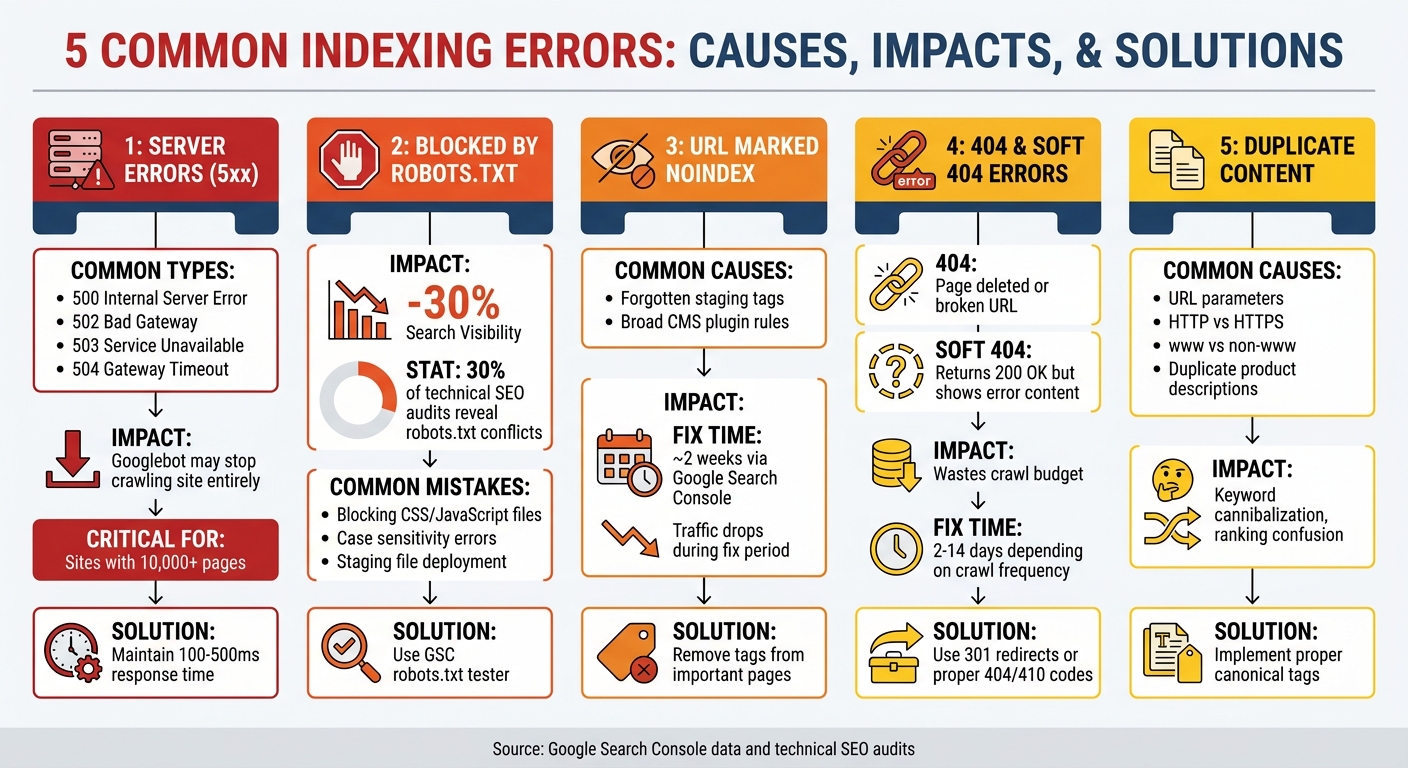
5 Common Indexing Errors: Causes, Impact, and Solutions
Knowing which indexing errors affect your website is the first step to resolving them. Fixing these issues is crucial for maintaining strong SEO and ensuring your audience can access your best content. Below, we break down five common indexing errors and what causes them.
Server Errors (5xx)
When your server doesn’t respond properly, it sends a 5xx status code, signaling a server-side problem. Common examples include:
- 500 Internal Server Error: A general server failure.
- 502 Bad Gateway: A proxy server receives an invalid response.
- 503 Service Unavailable: Temporary overload or maintenance.
- 504 Gateway Timeout: Servers fail to communicate in time.
If Googlebot encounters these errors repeatedly, it may crawl your site less often - or stop altogether. This is especially problematic for large websites with over 10,000 pages, as they are more prone to crawl budget issues. Since July 5, 2024, Google’s default crawler has been Mobile Googlebot, so your server must handle mobile rendering effectively to avoid these errors.
Blocked by Robots.txt
The robots.txt file tells search engines which parts of your site they can crawl. However, it doesn’t stop a page from being indexed if external links point to it - it might show up in search results without a proper description.
Research shows that robots.txt misconfigurations can reduce search visibility by up to 30%. Around 30% of technical SEO audits reveal conflicts where a URL is both disallowed in robots.txt and marked with a noindex tag. This happens because bots can’t see the noindex directive on blocked pages. Common errors include:
- Blocking CSS and JavaScript files, which can disrupt proper page rendering.
- Case sensitivity mistakes, like using
/Admin/instead of/admin/. - Accidentally uploading staging environment files to production.
"it is not a mechanism for keeping a web page out of Google" - Google
For example, in October 2025, a mid-sized ecommerce company mistakenly deployed a staging robots.txt file to production. Within 24 hours, their organic traffic dropped by 90%, wiping out years of SEO progress until the issue was fixed.
Another frequent issue is misusing meta directives, which leads us to the next error.
URL Marked Noindex
The noindex meta tag tells search engines not to include a page in their index. It’s helpful for admin pages, thank-you pages, or avoiding duplicate content, but it’s easy to apply it to important pages by mistake. Unlike robots.txt, search engines must crawl a page to see the noindex directive.
This error often happens during site migrations when developers forget to remove noindex tags from staging environments. It can also occur when CMS plugins apply noindex rules too broadly. Fixing these issues through Google Search Console can take about two weeks, during which your traffic may continue to drop.
Not Found (404) and Soft 404 Errors
A 404 Not Found error occurs when a page is deleted or the URL is broken. The server sends a 404 status code, signaling search engines that the page no longer exists. While some 404 errors are normal, including them in your sitemap wastes crawl budget and prevents bots from discovering new pages.
Soft 404 errors are trickier. These pages return a "200 OK" status code but display an error message, thin content, or empty search results. This confuses search engines and can lead to important pages being de-indexed. Fixing these errors typically takes 2 to 14 days, depending on your site’s crawl frequency.
"Crawl errors waste the crawl budget... Redirect chains, blocked assets, or unreachable pages consume that budget and prevent important URLs from being crawled or refreshed." - Manick Bhan, Founder CEO/CTO, Search Atlas
Beyond missing pages, duplicate content creates additional challenges.
Duplicate Content and Canonicalization Issues
When multiple URLs show the same or very similar content, search engines must decide which version to prioritize. This can lead to keyword cannibalization, where pages compete against each other instead of working together to improve rankings. Common causes include:
- URL parameters like tracking codes or session IDs.
- HTTP vs. HTTPS versions.
- www vs. non-www domains.
- Duplicate product descriptions.
"Duplicate content can hinder the indexing of specific webpages on a site, acting like an impenetrable fog that obscures their visibility to search engines." - Kyle Goldie
Canonical tags help by pointing search engines to the preferred version of a page. But mistakes - like pointing all pages to the homepage or creating circular references - can make things worse. In these cases, search engines may ignore your canonical tags and choose a different page to index.
How to Fix Indexing Errors
Now that you know the common indexing issues, let’s dive into solving them. The great thing is that Google Search Console (GSC) equips you with all the SEO marketing tools you need, and many fixes are straightforward once you understand the process.
Using Google Search Console for Diagnosis
Start by checking the Page Indexing Report in GSC. This report provides a snapshot of your site’s indexing status, highlighting which URLs are indexed and which aren’t. It also lists reasons for exclusions, such as 404 errors, server issues, or noindex tags. The report prioritizes issues, helping you tackle the most urgent ones first.
For a closer look at specific pages, turn to the URL Inspection Tool. This tool shows details like the last crawl date, whether Google can access the page, and the canonical URL Google has chosen. The "Test Live URL" feature is especially useful - it bypasses cached data to check the current state of the page, allowing you to confirm if your fixes are working before requesting re-indexing.
After implementing corrections, use the "Validate Fix" option in the Page Indexing Report. This prompts Google to recrawl the affected pages and keeps you updated via email. Validation can take up to two weeks, or longer for larger sites. Before you start troubleshooting, always check the "Last Crawl" date to ensure you’re not working with outdated information.
"Generally speaking, the sites I see that are easy to crawl tend to have response times there of 100 millisecond to 500 milliseconds... If you're seeing times that are over 1,000ms... that would really be a sign that your server is really kind of slow and probably that's one of the aspects it's limiting us from crawling as much as we otherwise could." - John Mueller, Search Advocate, Google
Once GSC gives you a clear picture of your site’s health, you can move on to resolving server-related issues that might be slowing down Google’s crawling.
Fixing Server Errors
If you encounter 5xx server errors, use the URL Inspection Tool to confirm whether the issue still exists. If it does, investigate your server for potential crashes or misconfigurations. Sometimes, rolling back recent changes can resolve the problem. Ensure your server has enough CPU and RAM to handle traffic surges, especially during peak periods.
Regularly review your Crawl Stats Report in GSC. For optimal crawling, your server response time should stay between 100ms and 500ms. Response times exceeding 1,000ms can hinder Google’s ability to crawl your site efficiently, which is particularly problematic for larger websites where crawl budget is a concern.
Once server issues are under control, focus on fine-tuning your robots.txt file and meta tag settings to ensure Google can access the right content.
Optimizing Robots.txt and Meta Tags
To resolve robots.txt blocking issues, use the robots.txt tester in GSC. Identify and remove any "Disallow" directives that block pages you want indexed. If necessary, add "Allow" directives to grant access.
For pages you want users to access but exclude from search results, use a noindex meta tag instead of robots.txt. This is crucial because Google can still index blocked URLs if they’re linked from external sites. Always test your changes using the "Test Live URL" feature before requesting re-indexing.
If indexing problems involve broken or misleading URLs, address those next.
Resolving 404 and Soft 404 Errors
For 404 errors caused by moved content, set up a 301 redirect to guide users and search engines to the new URL. This preserves any ranking value the old page had. If the content is permanently removed and has no replacement, remove internal links and sitemap entries pointing to it. This prevents Google from wasting crawl budget on dead ends.
Soft 404s, on the other hand, require a different strategy. First, determine if the page is genuinely thin or empty. If it’s a legitimate page, add meaningful content to make it valuable. If the page shouldn’t exist, configure your server to return a proper 404 or 410 status code instead of a 200 OK response. Avoid redirecting broken links to your homepage, as Google often treats these as soft 404s, which can dilute your ranking signals.
Once these basic issues are resolved, it’s time to tackle duplicate content problems.
Addressing Duplicate Content with Canonical Tags
Canonical tags help Google understand which version of a page to prioritize, but they act as hints, not strict rules. Google considers other signals like internal links, sitemaps, and redirects when determining the preferred version. To ensure consistency, make sure all signals point to the same URL.
Use absolute URLs in canonical tags (e.g., https://example.com/page) to avoid confusion. Every indexable page should include a self-referencing canonical tag to guard against duplicates created by tracking parameters or session IDs. Avoid canonical chains, where one canonical points to another page with its own canonical tag, and never point canonical tags to 404 or 301 pages.
"Canonical tags shouldn't be used in combination with the 'noindex' tag and/or robots.txt disallow. Since each of these attributes serves a different function, using all of them simultaneously gives Google contradictory signals." - John Mueller, Senior Search Analyst, Google
Only include your preferred canonical URLs in XML sitemaps. Including non-canonical or redirected URLs sends mixed signals to search engines. For websites that rely heavily on JavaScript, ensure the canonical tag is present in the raw HTML, not just injected via JavaScript. This allows Google to detect it before rendering the page.
SEO Tools to Prevent and Monitor Indexing Errors
Once you've tackled the main indexing issues, keeping an eye on things is essential to maintain strong search performance. Google Search Console (GSC) is your go-to for diagnosing problems, but third-party tools can often spot issues faster. Remember, GSC data can lag by 3–4 days, meaning a URL might still show as indexed even after it's removed from live search. To bridge this gap, here are some tools that can help you quickly identify and fix indexing problems.
Tools for Error Detection
- SE Ranking: The Website Audit tool includes a "Page Indexability" section that flags issues like robots.txt blocks, noindex tags, and non-canonical URLs in just minutes. It allows on-demand audits whenever site changes occur or problems arise, rather than waiting for Googlebot's next crawl.
- Screaming Frog SEO Spider: This tool uncovers a wide range of SEO problems, from non-indexable canonicals to pagination errors and redirect chains. By linking it to the GSC API, you can perform bulk URL inspections via the URL Inspection API, filtering for "Indexable URLs Not Indexed." This feature bypasses GSC's daily manual inspection limit of 2,000 URLs.
- Rapid Index Checker: For real-time updates, this tool verifies live SERP status to catch de-indexing events as they occur, avoiding the delays in GSC reporting.
- Serpstat: A free URL Indexing Inspection tool (limited to 100 URLs per session) that tracks page status using GSC data.
- Rank Math: Tailored for WordPress users, this plugin integrates directly into the CMS, allowing you to address 404 errors, noindex exclusions, and canonical mismatches without leaving your dashboard.
"Tracking your indexing status with tools like GSC is useful, but there are faster ways to find and fix indexing issues than Googlebot." – SE Ranking
Using the Top SEO Marketing Directory

To streamline your search for the best tools and services, the Top SEO Marketing Directory is a curated platform that highlights trusted SEO software and professional agencies. Whether you need help with technical audits, link building, or overall site optimization, the directory organizes resources by specialty. This saves you time and connects you with experienced experts who can tackle indexing errors and improve your search performance efficiently.
Conclusion
Summary of Errors and Solutions
Indexing errors - like server issues, 404 errors, misused noindex tags, and canonical tag problems - can prevent your content from appearing in search results. Server errors (5xx) indicate site instability, while 404 and soft 404 errors disrupt user experience and can impact rankings. Misplaced noindex tags or robots.txt blocks can hide critical pages, and duplicate content without proper canonical tags confuses search engines about which version to prioritize. To address these issues, start with Google Search Console's Page Indexing Report. This tool helps you identify and resolve indexing problems efficiently.
Maintaining a Healthy Indexing Strategy
Fixing errors once is only part of the solution - consistent monitoring and proactive maintenance are key to long-term SEO success. While some pages will always remain unindexed, aim to ensure these are low-value pages rather than your most critical content. Regularly check for unexpected increases in non-indexed URLs, which could point to template bugs or sitemap errors. For larger sites, improving crawl efficiency is essential. Block low-value pages, keep your XML sitemap updated, and strengthen internal linking to avoid orphan pages. Don’t overlook mobile optimization either - Google's mobile-first indexing makes it a top priority.
"If your website has indexing problems, it becomes invisible to search engines. This means potential visitors will not be able to find your website through organic searches." – SE Ranking
For additional support, the Top SEO Marketing Directory offers access to trusted tools and agencies that specialize in technical audits, site optimization, and maintaining indexing health. Partnering with experts and leveraging the right resources ensures your most important pages remain visible to your audience.
FAQs
How can I tell if a page is crawled but not indexed?
If you see the status "Crawled – Currently not indexed" in Google Search Console, it means Google has visited the page but hasn't included it in its index yet. This can happen for several reasons, such as:
- Site prioritization: Google may be focusing on indexing other pages it deems more important.
- Duplicate content: If your page's content is too similar to other pages, it might not be indexed.
- Soft 404 errors: These occur when a page appears to be missing or provides little value, even though it technically loads.
Resolving these issues can increase the chances of your page being indexed.
Should I use robots.txt or noindex for pages I don’t want in Google?
When you want certain pages to be crawled but not appear in search results, use the noindex directive. It's important not to block these pages using robots.txt. Why? Because Google needs to crawl the page to detect the noindex tag. If crawling is blocked via robots.txt, Google won't see the noindex directive, which could result in the page being indexed against your intentions.
What’s the fastest way to fix duplicate URLs without hurting rankings?
The fastest way to handle duplicate URLs without affecting rankings is by using 301 redirects. These redirects consolidate duplicates into one preferred URL, ensuring search engines focus on and index the correct version while retaining link equity.
Another helpful approach is to implement canonical tags correctly. These tags signal to search engines which URL is the preferred version, helping to prevent duplication issues and keeping your SEO intact. Using both methods together offers a quick and efficient fix.