Your website's speed can make or break its success. Slow-loading pages frustrate users, harm search rankings and SEO analytics, and cause lost revenue. Did you know that 53% of mobile users leave a site if it takes more than 3 seconds to load? Plus, every 1-second delay can drop conversions by 7%.
Here are 5 common page speed problems and how to fix them:
- Large Unoptimized Images: Compress images, use WebP format, and lazy load to reduce file sizes and improve load times.
- Poorly Optimized Scripts: Use
asyncordeferattributes and limit third-party scripts to improve performance. - Custom Fonts: Self-host fonts, preload critical ones, and enable
font-display: swapto improve text rendering. - Inadequate Server Resources: Upgrade hosting, use a CDN, and enable caching to reduce server strain.
- Excessive HTTP Requests: Combine files, lazy load assets, and audit third-party tools to minimize requests.
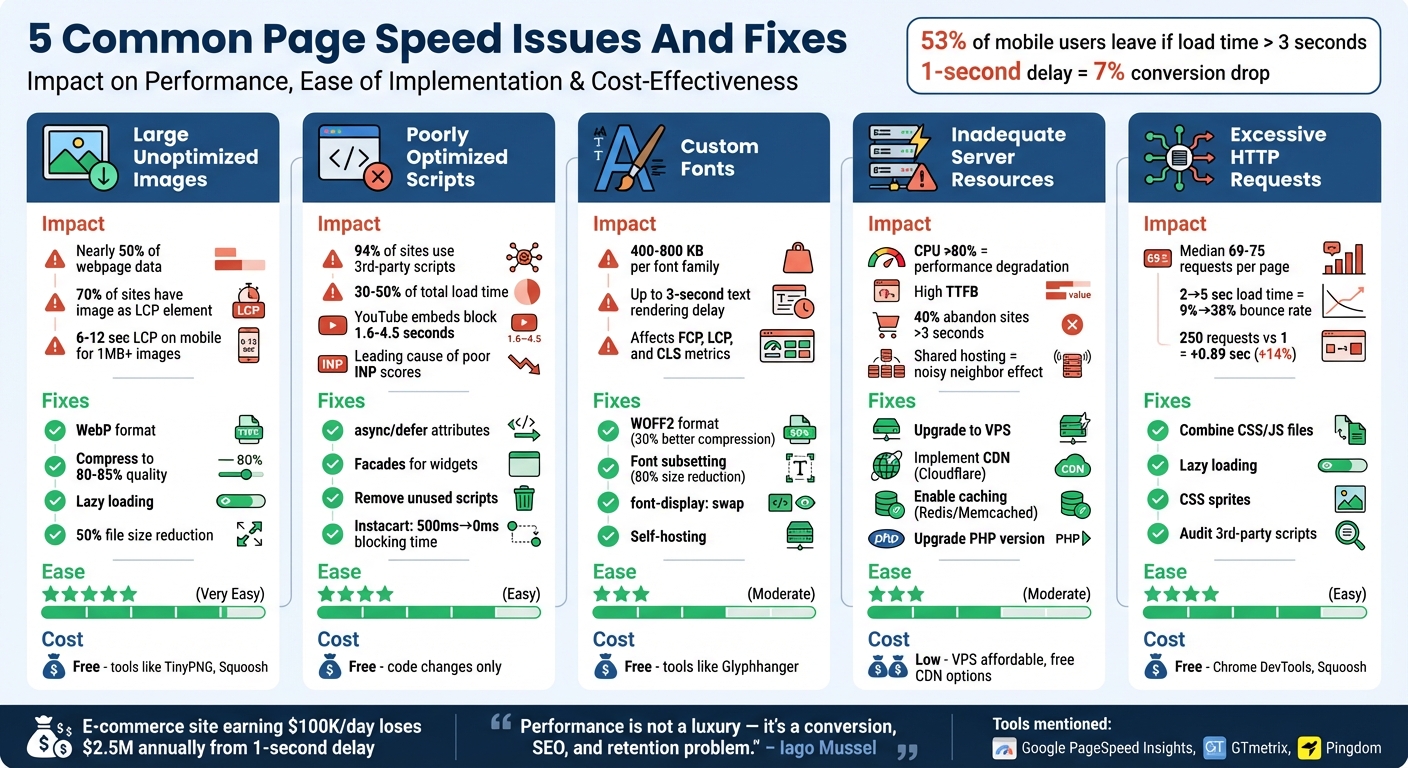
5 Common Page Speed Issues: Impact, Implementation Difficulty, and Cost Comparison
Google PageSpeed Insights Tutorial – Fix Your Website Speed & Rank Higher
sbb-itb-5be333f
1. Large Unoptimized Images
Images are often the main reason websites load slowly. They account for nearly 50% of a webpage's total data transfer. On marketing-heavy pages, images can make up as much as 60% to 80% of the total payload. Uploading high-resolution images without resizing or compressing them means visitors end up downloading unnecessary megabytes.
Impact on Load Time
The effect on performance is significant. Over 70% of webpages have an image as their Largest Contentful Paint (LCP) element. When images exceed 1 MB, mobile users may face LCP times ranging from 6 to 12 seconds. Vodafone's 2022 study revealed that improving LCP by 31% led to an 8% boost in sales, a 15% increase in visitor-to-lead conversion rates, and an 11% rise in cart-to-visit rates.
For example, serving a 2,400px-wide hero image to a 390px mobile screen delivers 37 times more pixels than necessary, wasting precious bandwidth. According to web.dev, optimizing image requests can provide one of the biggest performance gains.
Ease of Implementation for Fixes
Given the impact on LCP, optimizing images should be a top priority - and it’s not hard to do. Start by converting images to the WebP format and reducing quality settings from 100 to 80–85. This approach can cut file sizes by up to 50% without noticeable quality loss. Adding width and height attributes to <img> tags helps avoid layout shifts, and using loading="lazy" ensures images below the fold don’t load unnecessarily.
There are plenty of free SEO marketing tools to make this process simple. TinyPNG, Squoosh, and ImageOptim are excellent options for manual optimization. For WordPress users, plugins like ShortPixel can automate the entire process.
Cost-Effectiveness of the Solution
Optimizing images is one of the most budget-friendly ways to improve website performance. Many of the best tools, such as TinyPNG, Squoosh, and ImageOptim, are completely free. Beyond saving money on bandwidth and CDN costs, optimized images can also boost your Google rankings by improving Core Web Vitals.
2. Poorly Optimized Scripts
Once you've tackled image optimization, the next big step to improve page load times is managing scripts effectively. Scripts, much like images, can have a massive impact on how quickly a website loads. In fact, poorly optimized scripts are a major culprit behind sluggish performance. Consider this: over 94% of websites rely on third-party scripts, which typically account for 30-50% of total page load time. On average, websites run 30-40 third-party scripts, including tools like analytics trackers, chat widgets, and social media pixels.
Impact on Load Time
When a browser encounters a script, it essentially pauses everything - HTML parsing, DOM construction, and rendering - to download and execute the script. This often leads to users staring at a blank screen while the page loads. The effects are painfully obvious in Core Web Vitals metrics. For instance, YouTube embeds alone can block the main thread for at least 1.6 seconds on half of the sites studied, and up to 4.5 seconds on 10% of mobile sites. A single misconfigured script tag can stretch page load times from 3.4 seconds to a frustrating 6.5 seconds.
"If you've optimized your code, but your site still loads too slowly, it's probably the fault of third-party scripts." - Addy Osmani, Engineering Manager, Google
Heavy third-party widgets like Zendesk Chat and Facebook Pixel are some of the worst offenders, hogging bandwidth and delaying user interaction. According to the HTTP Archive 2024 report, third-party scripts now stand out as the leading cause of poor Interaction to Next Paint (INP) scores. These performance hits highlight why quick fixes are so essential.
Ease of Implementation for Fixes
One of the simplest ways to address script issues is by adding defer or async attributes to your script tags. These attributes allow the browser to continue parsing HTML while downloading scripts in the background. Use defer for scripts that depend on the DOM being fully loaded and async for independent tools like analytics.
For more substantial improvements, consider using facades. This technique replaces resource-heavy widgets or video embeds with static preview images that load the full script only when users interact with them.
A great example of script optimization in action is Instacart. In 2024, they adopted Cloudflare Zaraz to shift third-party tools to server-side execution. The results? Their Total Blocking Time dropped from 500ms to 0ms, and their Time to Interactive improved by 63%, going from 11.8 seconds to 4.26 seconds. Similarly, tools like Partytown, which move script execution to a web worker, can cut Total Blocking Time by an impressive 92%.
Cost-Effectiveness of the Solution
Optimizing scripts is one of the most cost-effective ways to boost website performance. Adding async and defer attributes is completely free and takes only a few minutes. Conducting an audit of your Google Tag Manager container to remove unused tracking pixels doesn’t cost a dime - just a bit of your time. Free tools like Lighthouse and Chrome DevTools can pinpoint which scripts are blocking your main thread for more than 250ms. Even advanced solutions like Partytown are open-source and free to use.
The benefits don’t stop there. By reducing bandwidth usage and improving site speed, you’ll also see a direct impact on your bottom line. For retail sites, every 0.1-second improvement in load time can lead to an 8% increase in conversions. That’s a win-win for performance and profitability.
3. Custom Fonts
Custom fonts can slow down your website by acting as render-blocking resources. Unlike system fonts that are already available on users' devices, custom fonts need to be downloaded first, which can negatively impact key performance metrics like First Contentful Paint (FCP) and Largest Contentful Paint (LCP). To put it into perspective, a single font family can weigh between 400–800 KB. Let’s break down how to make custom fonts load faster.
Impact on Load Time
When fonts load slowly, you might encounter two common issues: Flash of Invisible Text (FOIT) - where text stays hidden - or Flash of Unstyled Text (FOUT), where fallback fonts appear before the custom ones load. Browsers like Chromium and Firefox usually delay text rendering for up to 3 seconds if a web font hasn’t loaded, whereas Safari may wait indefinitely. Once the custom font does load, it can cause layout shifts (CLS) if it’s sized differently than the fallback font, leading to visible "jumps" on the page.
Using third-party services like Google Fonts can also add delays due to additional DNS lookups and TCP/TLS handshakes. On top of that, modern browsers now isolate cache data by site, meaning a Google Font cached on one website won’t automatically load faster on another.
"Fonts aren't decoration. They're infrastructure. They sit on the critical rendering path, they affect performance metrics like LCP and CLS." - Jono Alderson, Performance Specialist
These delays can harm your FCP, LCP, and CLS scores, ultimately impacting user experience and conversion rates.
Ease of Implementation for Fixes
Here’s how you can optimize fonts for better performance:
- Use WOFF2 format: It’s supported by all major browsers and compresses fonts about 30% better than older formats.
- Subset your fonts: Remove unused characters and limit font weights to cut down file size and HTTP requests by up to 80%.
- Preload critical fonts: Use
<link rel="preload">to prioritize fonts that appear above the fold. - Enable
font-display: swap: This ensures a fallback font is shown while the custom font is still loading. - Self-host fonts: Hosting fonts on your own server eliminates the delays caused by external connections and takes advantage of HTTP/2 prioritization.
- Fine-tune fallback fonts: Use CSS properties like
size-adjust,ascent-override, anddescent-overrideto align fallback fonts with custom ones, avoiding layout shifts.
Cost-Effectiveness of the Solution
Optimizing fonts doesn’t have to cost a dime. Free tools like Glyphhanger, Subfont, and Fonttools can help you subset and optimize fonts. While Google Fonts is a free service, self-hosting your fonts often delivers better performance. Sticking to system fonts like Arial, Helvetica, or system-ui is another no-cost option since these are already installed on users’ devices. Additionally, replacing bulky icon fonts with inline SVGs ensures you only load the icons you need, for free.
The business case for font optimization is strong. A one-second delay in page load time can lead to a 7% drop in conversions, and nearly 40% of users will abandon a site that takes more than three seconds to load. By applying these optimizations, you’ll not only boost your site’s speed and performance metrics but also keep users engaged - and protect your revenue.
4. Inadequate Server Resources and Hosting
Once you've tackled on-page optimization issues, it's time to ensure your hosting setup can handle fast content delivery. If your server lacks sufficient resources - like CPU, RAM, or disk I/O - response times will inevitably suffer. For instance, when CPU usage consistently exceeds 80%, your site’s performance will noticeably degrade, often reflected in a high Time to First Byte (TTFB). This metric measures how long it takes for your browser to receive the first byte of data, and a poor TTFB is a clear sign that your server is struggling to keep up. To complement your on-page efforts, your server must be equipped to load all elements quickly.
Impact on Load Time
Shared hosting might be the most budget-friendly option, but it comes with a major downside: you're sharing server resources with potentially hundreds or thousands of other websites. This leads to the "noisy neighbor" effect, where a sudden traffic surge on one site hogs CPU and RAM, dragging down the performance of every other site on the server. If your server runs out of RAM, it resorts to disk swapping, which slows everything down significantly.
Here’s why this matters: research shows that 40% of users will abandon a site if it takes longer than 3 seconds to load. Even a single second of delay can have a noticeable impact on conversions.
Ease of Implementation for Fixes
Improving server performance doesn’t have to be overly complicated. Switching from shared hosting to a Virtual Private Server (VPS) is a straightforward way to avoid the limitations of shared resources. Many hosting providers make it easy to upgrade and even offer temporary resource boosts to handle sudden traffic spikes. Use tools like "top" or your hosting dashboard to monitor CPU usage - if it’s consistently above 80%, it’s time to take action.
Another effective step is implementing a Content Delivery Network (CDN), such as Cloudflare. CDNs reduce latency by serving static assets from servers closer to your users, lightening the load on your origin server. You can also upgrade your PHP version, enable server-side caching with tools like Redis or Memcached, and select a server location closer to your audience to further cut down on latency.
Cost-Effectiveness of the Solution
Upgrading to VPS hosting is a smart investment. It offers resource isolation and scalability at a fraction of the cost of dedicated servers. Plus, many CDNs, like Cloudflare, offer free entry-level plans, so you can boost performance without spending a dime. Upgrading your PHP version and enabling caching are also free features typically included with your hosting plan.
The numbers make a strong case for these changes: nearly half of consumers (47%) expect a web page to load in 2 seconds or less. A delay of just 1 second can lead to a 7% drop in conversions. In other words, investing in server improvements pays off - not just in speed but in customer retention and revenue.
5. Excessive HTTP Requests
After optimizing your server, the next step to improve your site's load time is cutting down on HTTP requests. Each asset on your site - like images, scripts, stylesheets, fonts, and third-party widgets - requires a separate HTTP request. These requests involve DNS lookups, TCP connections, and SSL handshakes before any data is even transferred. While a single request might seem minor, the combined effect of multiple requests can drag down your page's performance.
Impact on Load Time
Here’s a stark reality: if your page's load time increases from 2 seconds to 5 seconds, your bounce rate could jump from 9% to 38%. Back in March 2019, the median webpage required 69–75 HTTP requests, and many commercial sites surpassed this due to 15–20 third-party scripts. Even with HTTP/2, which allows multiplexing, browsers still limit concurrent streams, resulting in queued requests. In one test, making 250 separate requests instead of one large request added 0.89 seconds to the load time - a 14% drop in performance.
Fixes That Are Easy to Apply
You can take several simple steps to reduce HTTP requests:
- Combine CSS and JavaScript files into bundles to minimize round trips.
- Use the
loading="lazy"attribute for images that appear below the fold. - Implement CSS sprites to merge small icons into a single image file, using
background-positionto display the correct segment. - Add
asyncordeferattributes to script tags to prevent them from blocking page rendering. - Audit third-party scripts and remove or delay those that don’t add meaningful value. You can also find professional help through an SEO marketing directory to identify more advanced optimization opportunities.
A Budget-Friendly Solution
Reducing HTTP requests doesn’t have to break the bank. Tools like Chrome DevTools are free and built into most browsers, while image compression tools like Squoosh are also available at no cost. WordPress users can take advantage of free plugins to clean up unnecessary assets. On top of that, fewer HTTP requests mean less bandwidth usage and reduced strain on your server. Considering that 57% of users abandon a site that takes longer than 3 seconds to load, this optimization offers an immediate and measurable payoff. Paired with other improvements like script, font, image, and server optimizations, cutting down HTTP requests is a key step toward better overall performance.
Conclusion
Page speed is a critical metric that directly affects your revenue. The issues highlighted earlier are some of the biggest culprits slowing down websites. Fixing them can be the difference between a customer making a purchase or leaving your site. For example, an e-commerce site generating $100,000 daily could lose $2.5 million annually from just a 1-second delay.
"Performance is not a luxury - it's a conversion, SEO, and retention problem."
- Iago Mussel, CEO, HunterMussel
Google's Core Web Vitals (LCP, INP, CLS) are now integral to search rankings. A slow-loading site not only frustrates users but also loses valuable organic traffic to faster competitors. With 40% of visitors abandoning a site that takes longer than 3 seconds to load, the stakes are high. Sluggish performance leads to lost revenue, lower rankings, and a tarnished brand image, making speed optimization essential in today’s fast-paced digital landscape.
Fortunately, many solutions are straightforward and budget-friendly. Techniques like converting images to WebP, deferring non-essential scripts, and enabling Brotli compression can often be implemented with free tools and basic technical knowledge. For more advanced needs - such as ongoing monitoring or specialized hosting - resources like the Top SEO Marketing Directory provide access to expert tools and services that can help you maintain a competitive edge.
To keep your site running at peak performance, use tools like Google PageSpeed Insights, GTmetrix, and Pingdom for regular monitoring. As your site evolves with new features, content, or third-party integrations, new challenges may arise. Proactively auditing your Core Web Vitals ensures your site stays fast, ranks well, and delivers the smooth experience users expect. By tackling these performance issues head-on, you’ll not only improve load times but also increase conversions and strengthen your competitive position.
FAQs
Which page speed fix should I prioritize first?
One of the biggest culprits behind slow website load times is large file sizes. Tackling this issue should be your top priority. Start by focusing on two key areas:
- Optimizing images: Compress images without sacrificing quality, and use modern file formats like WebP to reduce size.
- Minimizing code: Remove unnecessary characters, spaces, or lines from your HTML, CSS, and JavaScript files. This can make your website leaner and faster.
These steps not only enhance performance but also improve user experience and can lead to higher conversion rates. This is especially critical for e-commerce sites, where every second of delay can directly affect sales.
How can I find which scripts are slowing my site down?
Your browser's Developer Tools, specifically the Performance panel, is an excellent resource for identifying JavaScript execution that might be slowing down your site. It highlights scripts that block the main thread and delay interactivity, giving you a clear picture of what's causing sluggishness.
Beyond that, third-party scripts often play a big role in load times. The Performance panel can help pinpoint which of these scripts are creating bottlenecks.
For a deeper dive, performance monitoring tools are another great option. They provide detailed insights into script-related slowdowns, helping you zero in on the specific culprits dragging down your site's speed.
When should I upgrade hosting versus add a CDN?
If your site is struggling due to limited server resources or bandwidth - especially during high traffic periods or when running complex features - it might be time to upgrade your hosting. Doing so can help boost page speed and improve the overall user experience.
For audiences spread across different regions, adding a Content Delivery Network (CDN) can make a big difference. A CDN works by caching static content closer to your users, minimizing latency and speeding up load times for assets like images, CSS, and JavaScript. The best part? You can enjoy these benefits without needing to upgrade your hosting plan.