If you want local schema to work, keep it simple: use the right business type, put the JSON-LD on the right page, and make sure it matches your visible business details exactly. In this guide, I’d focus on the minimum fields that matter most - like @type, @id, name, address, phone, URL, hours, and geo data - plus where to place the markup for single-location, multi-location, and service-area businesses.
Here’s the short version:
- I’d use the most specific Schema.org subtype possible, not just
LocalBusiness - I’d keep the business name, address, and phone number identical across the page, schema, and Google Business Profile
- I’d use JSON-LD because it’s easier to maintain in most CMS setups
- I’d give each location page its own schema block and its own
@id - I’d validate the code with JSONLint and Google’s Rich Results Test
- I’d update schema any time hours, phone, address, or service area changes
One detail stands out: the article gives two full JSON-LD examples - one for a single-location HVAC company and one for a service-area electrician - so readers can copy the structure and swap in their own business data. It also points out common mistakes like duplicate schema, reused @id values, and mismatched NAP data.
If I were setting up local schema today - Friday, July 17, 2026 - this is the exact checklist I’d want before publishing.
Core LocalBusiness Properties with a Full JSON-LD Example
Required and Recommended Fields for U.S. Local Pages
Start with these fields. They give search engines the core local signals they need.
| Property | Priority | U.S. Usage Note |
|---|---|---|
@context |
Required | Always use https://schema.org. |
@type |
Required | Use the most specific business subtype. |
@id |
Required | Use the canonical URL of the page as a stable, unique identifier for the business entity. |
name |
Required | Must match the Google Business Profile name exactly. |
address |
Required | Use PostalAddress with streetAddress, addressLocality, addressRegion, postalCode, and addressCountry set to "US". |
telephone |
Required/Core | Use E.164 format: +1 followed by the area code and number. |
url |
Required/Core | Use the canonical URL of the location page. |
geo |
Strongly Recommended | Use decimal degrees from Google Maps, with at least five decimal places. |
openingHoursSpecification |
Strongly Recommended | Use 24-hour HH:MM format; this helps with "open now" queries. |
image |
Recommended | URL of your logo or primary business photo. |
priceRange |
Recommended | Use $ to $$ to set customer price expectations. |
sameAs |
Recommended | Array of social and directory profile URLs for entity disambiguation. |
areaServed |
Recommended | List cities or regions; key for service-area businesses. |
aggregateRating |
Recommended | Only include if genuine reviews are visible on the page. |
Match the business name, address, and phone number exactly across your schema, site footer, and Google Business Profile.
Use the example below as a template, then replace it with your exact business details.
JSON-LD Example for a Single-Location Business Page
Here’s a complete example for a single-location HVAC company in Phoenix, Arizona. Every field follows U.S. formatting.
<script type="application/ld+json">
{
  "@context": "https://schema.org",
  "@type": "HVACBusiness",
  "@id": "https://www.desertairaz.com/",
  "name": "Desert Air Heating & Cooling",
  "url": "https://www.desertairaz.com/",
  "telephone": "+16025550183",
  "image": "https://www.desertairaz.com/images/logo.jpg",
  "priceRange": "$",
  "address": {
    "@type": "PostalAddress",
    "streetAddress": "4821 N. 32nd Street, Suite 100",
    "addressLocality": "Phoenix",
    "addressRegion": "AZ",
    "postalCode": "85018",
    "addressCountry": "US"
  },
  "geo": {
    "@type": "GeoCoordinates",
    "latitude": 33.50912,
    "longitude": -111.98234
  },
  "openingHoursSpecification": [
    {
      "@type": "OpeningHoursSpecification",
      "dayOfWeek": [
        "https://schema.org/Monday",
        "https://schema.org/Tuesday",
        "https://schema.org/Wednesday",
        "https://schema.org/Thursday",
        "https://schema.org/Friday"
      ],
      "opens": "07:00",
      "closes": "18:00"
    },
    {
      "@type": "OpeningHoursSpecification",
      "dayOfWeek": "https://schema.org/Saturday",
      "opens": "08:00",
      "closes": "14:00"
    }
  ],
  "sameAs": [
    "https://www.yelp.com/biz/desert-air-heating-cooling-phoenix",
    "https://www.facebook.com/desertairaz",
    "https://www.bbb.org/us/az/phoenix/profile/hvac/desert-air-heating-cooling"
  ]
}
</script>
The @id uses the canonical homepage URL. That gives the business entity a stable identifier across the site. The weekday hours are grouped into one array because the schedule is the same, which keeps the markup tidy. Service-area pages use this same setup, with coverage called out separately.
JSON-LD Example for a Service-Area Business
The core fields stay the same here. The main difference is areaServed.
<script type="application/ld+json">
{
  "@context": "https://schema.org",
  "@type": "Electrician",
  "@id": "https://www.voltedgeelectric.com/",
  "name": "VoltEdge Electric",
  "url": "https://www.voltedgeelectric.com/",
  "telephone": "+17135550294",
  "address": {
    "@type": "PostalAddress",
    "streetAddress": "1102 Westheimer Rd",
    "addressLocality": "Houston",
    "addressRegion": "TX",
    "postalCode": "77006",
    "addressCountry": "US"
  },
  "geo": {
    "@type": "GeoCoordinates",
    "latitude": 29.74372,
    "longitude": -95.39841
  },
  "areaServed": [
    "Houston, TX",
    "Pasadena, TX",
    "Sugar Land, TX",
    "Pearland, TX",
    "Katy, TX"
  ],
  "openingHoursSpecification": [
    {
      "@type": "OpeningHoursSpecification",
      "dayOfWeek": [
        "https://schema.org/Monday",
        "https://schema.org/Tuesday",
        "https://schema.org/Wednesday",
        "https://schema.org/Thursday",
        "https://schema.org/Friday"
      ],
      "opens": "08:00",
      "closes": "17:00"
    }
  ],
  "sameAs": [
    "https://www.yelp.com/biz/voltedge-electric-houston",
    "https://www.facebook.com/voltedgeelectric"
  ]
}
</script>
The schema shape is the same as in the single-location example. areaServed is the only field that changes to show coverage. For SABs, add areaServed to list the places you serve. If the business does not publish a public address, leave out streetAddress and keep the city, state, and ZIP. And one point matters here: areaServed tells search engines where you work, not where you’re based, so don’t use it in place of a real address you have.
sbb-itb-5be333f
Choosing the Right LocalBusiness Schema Type
Where to Place LocalBusiness Markup on a Site
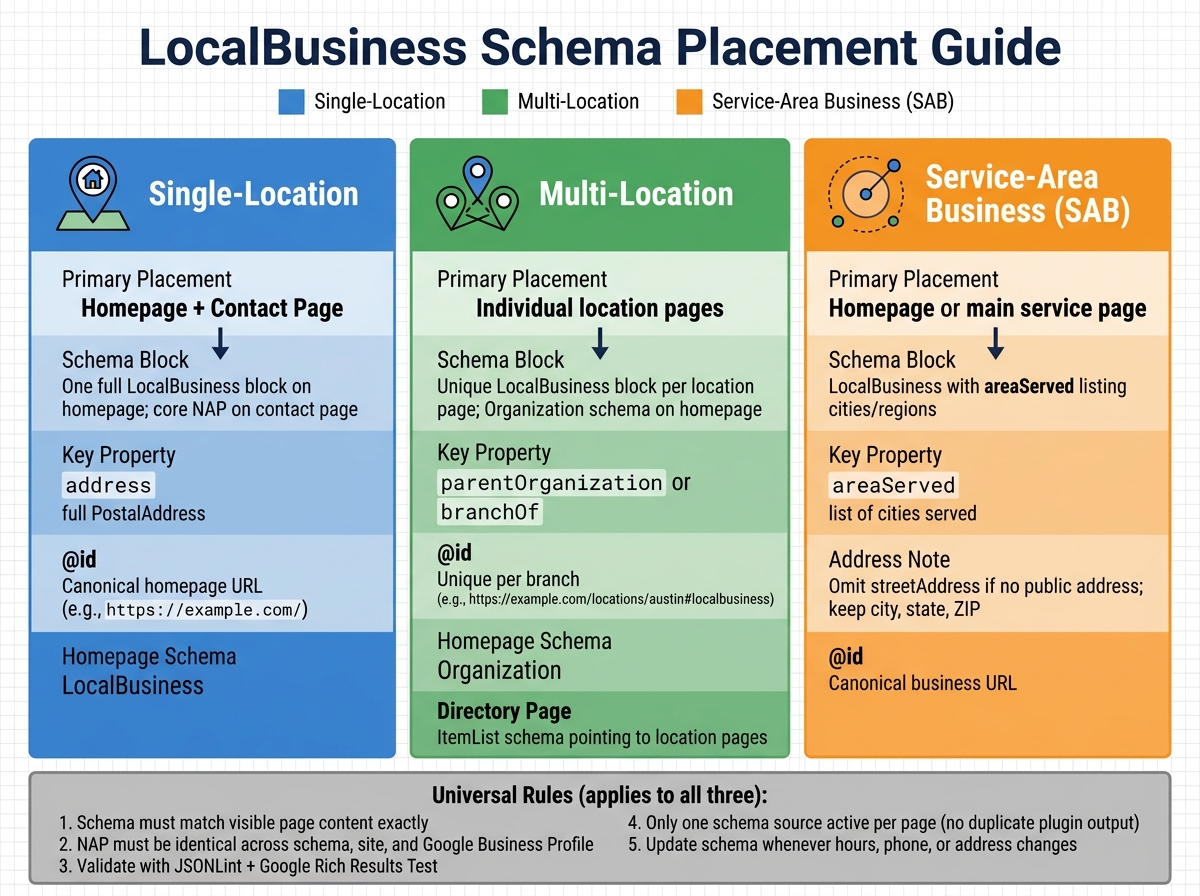
LocalBusiness Schema Placement Guide: Single vs. Multi-Location Sites
Put the schema on the page that best matches the business entity. In plain terms, the markup should live on the page that actually shows the business details users can see. Use the page types from the JSON-LD examples above as the model for placement.
Single-Location Sites: Homepage and Contact Page Placement
If the business has one location, place the same business entity from the earlier example on the homepage. Search engines most often connect the homepage with the business itself, so that's where the full schema should go. If the contact page also shows the street address and business hours, include the same NAP details on that page too - but only if those details are visible there.
The main rule is simple: the schema has to match the visible page content. So the JSON-LD script belongs on the same page as the business details users can read.
Multi-Location Sites: One Schema Block per Location Page
For multi-location sites, each branch should have:
- its own page
- its own schema block
- its own
@id
Each branch needs a dedicated URL and a separate LocalBusiness block. Each location also needs a distinct @id, like https://example.com/locations/austin#localbusiness.
On each location page, connect the branch to the main brand with parentOrganization or branchOf. On the main homepage, use Organization schema instead of LocalBusiness. If you also have a "Find a Location" directory page, use ItemList schema that points users and crawlers to the individual location pages, rather than stuffing full LocalBusiness nodes for every branch onto that one page.
| Site Type | Primary Placement | Schema Strategy | Key Property |
|---|---|---|---|
| Single-Location | Homepage + Contact Page | Full LocalBusiness block on homepage; core NAP on contact page |
address (full) |
| Multi-Location | Individual location pages | Unique LocalBusiness per page; Organization on homepage |
parentOrganization |
After placement, validate the live page before you publish changes.
Common Ways to Deploy Schema in a CMS or Tag Manager
Once you've picked the right pages, use one source to output the markup. You can deploy schema through theme templates, an SEO plugin, or GTM. In WordPress, plugins such as Rank Math or Yoast can output LocalBusiness schema from the site settings panel. In Webflow or a similar CMS, dynamic field bindings can pull the address, hours, and geo-coordinates from a CMS collection, which helps keep each location page accurate without hand edits.
One thing can trip people up fast: don't let multiple tools output LocalBusiness schema at the same time. If both the theme and the plugin are doing it, keep only one source active. Then test the live markup in Rich Results Test.
Validation, Updates, and Common Markup Mistakes
How to Validate JSON-LD and Read Errors Correctly
Once the markup is live, validate it and keep it synced with the page. Use two checks: JSONLint and Google's Rich Results Test. Paste the raw JSON-LD into JSONLint first to catch syntax issues. One bad comma or an unclosed bracket can make the whole block fail without much warning.
Then test the live page in Google's Rich Results Test. This tool splits issues into errors and warnings. Red errors usually mean syntax problems or missing required fields such as name or address. That can stop eligibility for structured data features. Warnings point to missing optional fields. The block can still qualify, but the result may show less information.
One catch: a block can validate and still be wrong. If the schema doesn't match the visible page exactly, you still have a problem. It's smart to keep an eye on structured data in Google Search Console after any CMS or theme update.
After validation, the day-to-day work is simple: keep hours, address, and service area current.
What to Update When Hours, Phone, or Address Changes
Schema is not a set-it-and-forget-it job. Treat it like a live business record. If hours, phone numbers, addresses, or service areas change, update the JSON-LD at the same time as the on-page copy and the Google Business Profile. If one source says one thing and another says something else, search engines get mixed signals.
Here are the main items to review for single-location and multi-location teams:
| Maintenance Item | When to Review | What to Verify |
|---|---|---|
| Business Hours | Seasonal / before holidays | openingHoursSpecification matches visible site text and Google Business Profile |
| NAP Details | Upon relocation | streetAddress, postalCode, and telephone in E.164 format (for example, +14805551234) |
| Service Area | Quarterly | areaServed lists all current cities or regions for service-area businesses |
| Reviews / Ratings | Monthly | Ratings must match reviews shown on the page |
For multi-location teams, a shared location registry helps a lot. Think of it as one central file with each branch's URL, @id, NAP, hours, and sameAs links. That makes bulk updates easier and cuts the risk of NAP drift across locations.
Mistakes That Break Local Schema Accuracy
The biggest problem is a NAP mismatch between the schema, the page text, and the Google Business Profile. Even tiny differences can cause trouble. For example, "Suite 100" in schema and "Ste. 100" on the page may look close enough to a person, but they can still create entity confusion. Keep all three sources identical every time you make a change.
Two other mistakes show up all the time.
- Invalid coordinates. If latitude and longitude get swapped, or if you round them too much, map placement can break. Use at least five to six decimal places, or just use the full precision from Google Maps.
- Duplicate schema blocks on WordPress sites. This often happens when two SEO plugins both output a
LocalBusinessblock. Search engines then see conflicting data, so leave only one source active and check the page in Rich Results Test.
On multi-location sites, there's one more issue to watch for: reusing the same @id on different location pages. That creates entity confusion fast. Each branch needs its own @id, tied to its own canonical URL.
If manual updates are slowing your team down, the next section shows how top SEO tools and plugins can cut drift.
Schema Tools and Directories That Speed Up Implementation
What to Look for in Schema Tools, Plugins, and Services
When schema changes often, pick tools that keep page data in sync on their own. The right choice depends on site size and how often details change. If you run a single-location business, a generator that produces clean JSON-LD is often enough. If you manage a multi-location brand, you need tooling that scales across pages without causing NAP drift or uneven @id patterns.
The biggest thing to look for is CMS field mapping. That means schema values like hours, addresses, and phone numbers are pulled straight from your CMS. So when business details change, the markup changes too. That helps keep schema lined up with the source data. It also makes sense to choose tools that keep the exact schema type you already picked, instead of swapping it for something more generic.
Here’s a quick breakdown of the main tool categories and what each should handle well:
| Tool Category | Key Capabilities |
|---|---|
| Generators | JSON-LD output, specific subtype support, sameAs arrays |
| CMS Plugins | Dynamic field mapping, page-level control, multi-location support |
| Testing Tools | Syntax validation, rich result eligibility, mobile rendering |
| QA & Monitoring | NAP consistency audits, error alerts, Search Console integration |
If your team wants outside help, a curated directory can save time and cut down the back-and-forth.
How Marketers Can Use Top SEO Marketing Directory for Schema Support
Top SEO Marketing Directory helps marketers find schema tools and services for structured data deployment, local page optimization, and multi-location support. If you need help picking a tool or provider, the directory can narrow your options by schema capability. It includes JSON-LD generators, CMS plugins, and full-service SEO agencies, so you can line up the solution with the job.
Conclusion: The Minimum Markup Every Local Business Page Should Have
Use the most specific schema type. Put the markup on the page it matches. Keep it synced with live business details. Then validate updates in Google’s Rich Results Test and update schema any time your hours, phone number, or address changes.
FAQs
How do I choose the right schema type?
Pick the most specific schema type you can. Don’t default to LocalBusiness or Organization if a closer match exists. If the business is a dentist, use Dentist. If it’s a plumbing company, use Plumber. If it’s a restaurant, use Restaurant.
Use LocalBusiness when customers can visit a physical location. If the business is online-only or doesn’t have a public storefront, Organization is usually the better choice. When in doubt, check the Schema.org hierarchy and choose the closest match.
Should every location page use a different @id?
No. The @id should be the one canonical identifier for your business entity.
If you have one business, use the same canonical homepage URL as the @id across your site. Then, on location pages, reuse that @id in the schema so those pages stay tied to the main business entity.
What should I do if my business hours change?
Update your JSON-LD right away when your hours change. If your schema is out of date, search engines may show the wrong hours - and that can send people to your business when you're closed.
Edit the openingHoursSpecification array in your JSON-LD block. Use the 24-hour format and list the right days. Make sure it matches your Google Business Profile exactly.