If rich results stop showing, I first check Google Search Console, test the page in Google’s Rich Results Test, and then fix the source template. That is the shortest path for most sites.
Here’s the process in plain English:
- Find the affected URLs in Google Search Console
- Separate errors from warnings - errors block eligibility, warnings do not
- Validate the markup with Schema.org Validator and Google’s Rich Results Test
- Check patterns across templates with a crawler if many pages are hit
- Fix the markup at the source and make sure it matches visible page content
- Request validation and track recovery in Search Console
A page can pass schema validation and still not get a rich result. That happens because Schema.org rules and Google eligibility rules are not the same thing. I’d treat that as the core idea of the article.
A few points stand out:
- Errors usually mean missing required fields like
price,availability, orheadline - Warnings mean the page may still qualify, but with less detail
- JavaScript-rendered schema can fail if Google does not see the final markup as expected
- Template issues often affect dozens or thousands of URLs at once
- Mismatch between schema and visible content can block results or create policy problems
The article’s main takeaway is simple: detect, validate, audit, fix, confirm. If I follow that order, I can usually tell whether the issue is a one-page mistake, a CMS mapping problem, or a sitewide template bug.
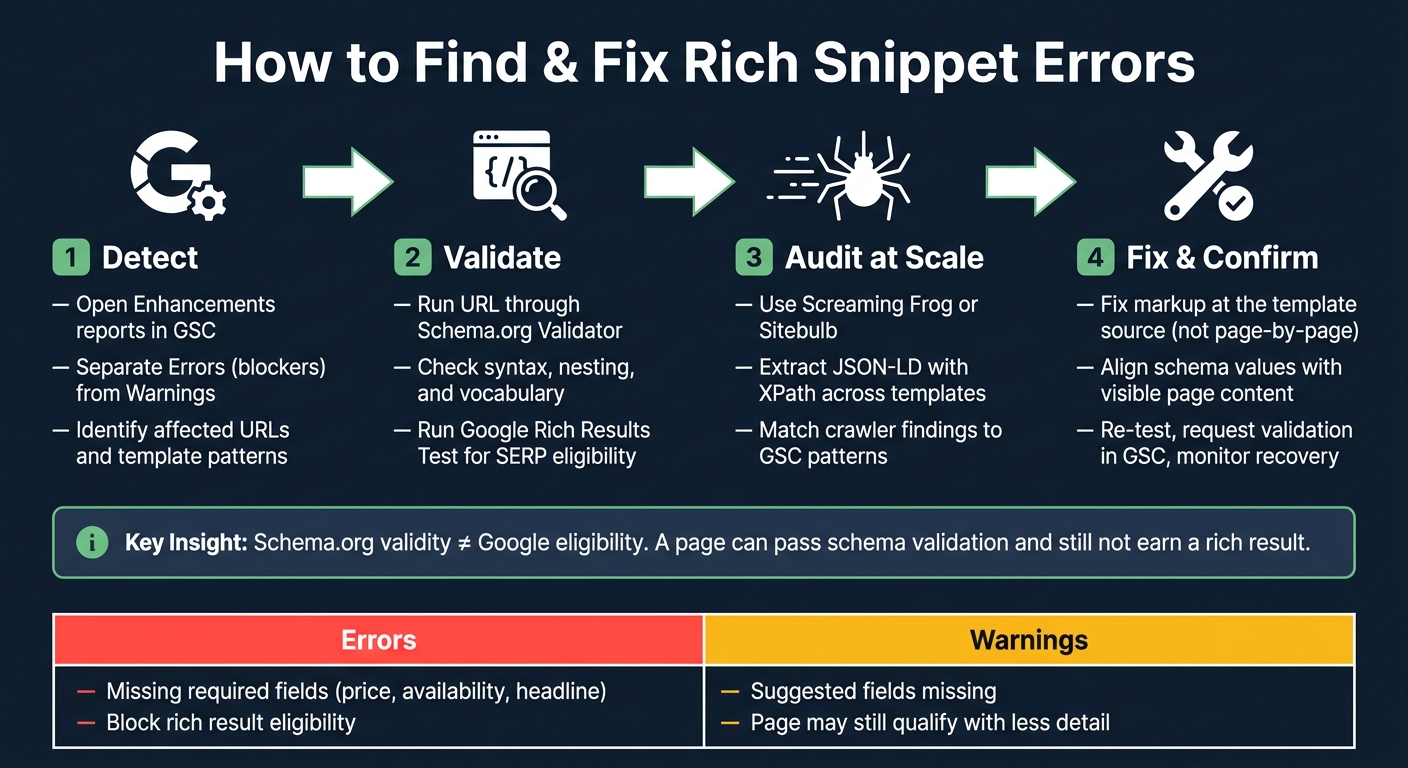
How to Find and Fix Rich Snippet Errors: 4-Step Process
How to Fix Schema Markup Issues & Drive More Traffic?
Step 1: Find Affected Pages in Google Search Console
Google Search Console (GSC) is the best place to start. Use it first to find which rich result types are affected, how many pages are involved, and which URLs matter most.
Use Search Appearance and Enhancements Reports
Start with the issue type Google flags. Then drill down to the affected URLs.
Open your property in GSC and go to the Performance report. From there, use the Search appearance filter. This shows which rich result types are getting clicks and impressions, like Product results, Merchant listings, and Article results.
Then check the Enhancements section in the left sidebar. Each supported rich result type has its own report. These reports show whether pages have Errors or Warnings. You also get a trend graph, which makes it easier to spot a spike after a deployment or CMS update. GSC also shows example URLs, which are handy for debugging.
Read Issue Details and Prioritize by Impact
Treat Errors as blockers. Treat Warnings as lower-priority cleanup.
Click into any issue in the Enhancements report and review the affected item count plus the example URLs. If many URLs are hit, that often points to a template-level problem. That's especially common when the same issue shows up across a folder like /products/ or /blog/.
When deciding what to fix first, sort by severity and business impact:
| Priority | Template Type | Key Fields to Check |
|---|---|---|
| Critical | Product (PDP) | price, priceCurrency (USD), availability, offers |
| High | Article / Blog | author, datePublished, headline, image |
| High | LocalBusiness | address, telephone, openingHours |
| Medium | FAQ / HowTo | question, acceptedAnswer, step |
For product pages, keep price numeric and put the currency in priceCurrency. Start with critical errors on top-priority templates first.
Use those top-priority URLs in Step 2 to check the markup itself.
Step 2: Validate Markup with Schema.org Validator and Google Testing Tools
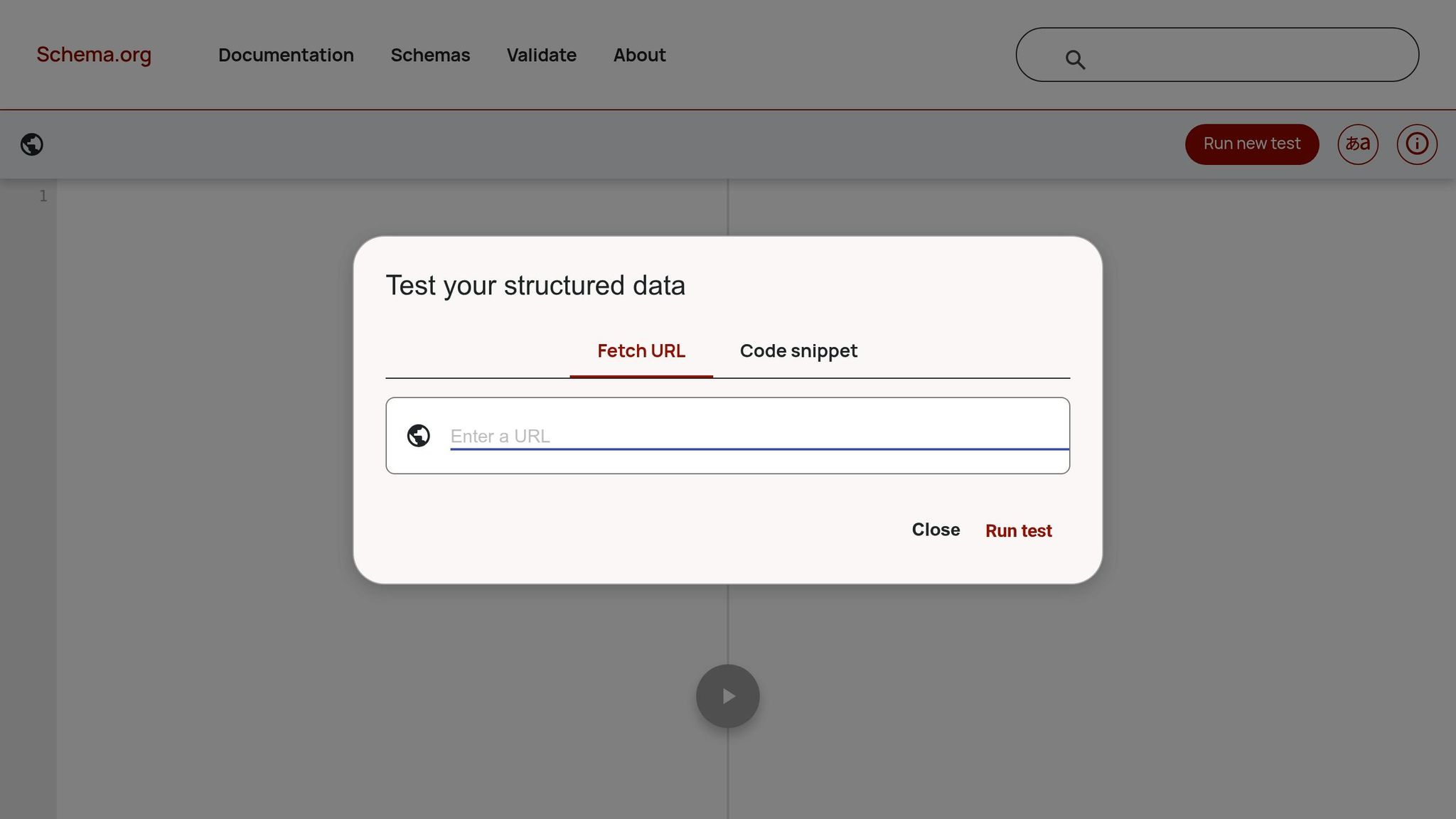
Once you have the affected URLs from GSC, check the markup itself. You need two tools here, and each answers a different question - so use them in order. Stick with the same URLs from Step 1. That makes it much easier to tell whether you're dealing with a schema code problem or a Google eligibility problem.
Use Schema.org Validator to Check Schema Correctness
The Schema.org Validator (validator.schema.org) checks whether your JSON-LD or Microdata is technically correct. You can paste in raw code or test a live URL. It will flag syntax issues like missing commas, broken brackets, or invalid nesting. It also catches vocabulary mistakes, like using a property that isn't part of Schema.org - for example, writing cost instead of price.
Formatting matters too. On a product page, the price should be a plain number such as "price": "49.00", with "priceCurrency": "USD" in a separate field. Don't put the dollar sign inside the price value. Dates should use ISO 8601 format, so July 11, 2026 should appear as "datePublished": "2026-07-11" in the markup.
One thing this validator does not do: it won't tell you whether the schema matches what users see on the page. So after the code passes, check that part by hand.
First make sure the schema is valid. Then check whether Google will use it.
Use Google Rich Results Test to Check Eligibility
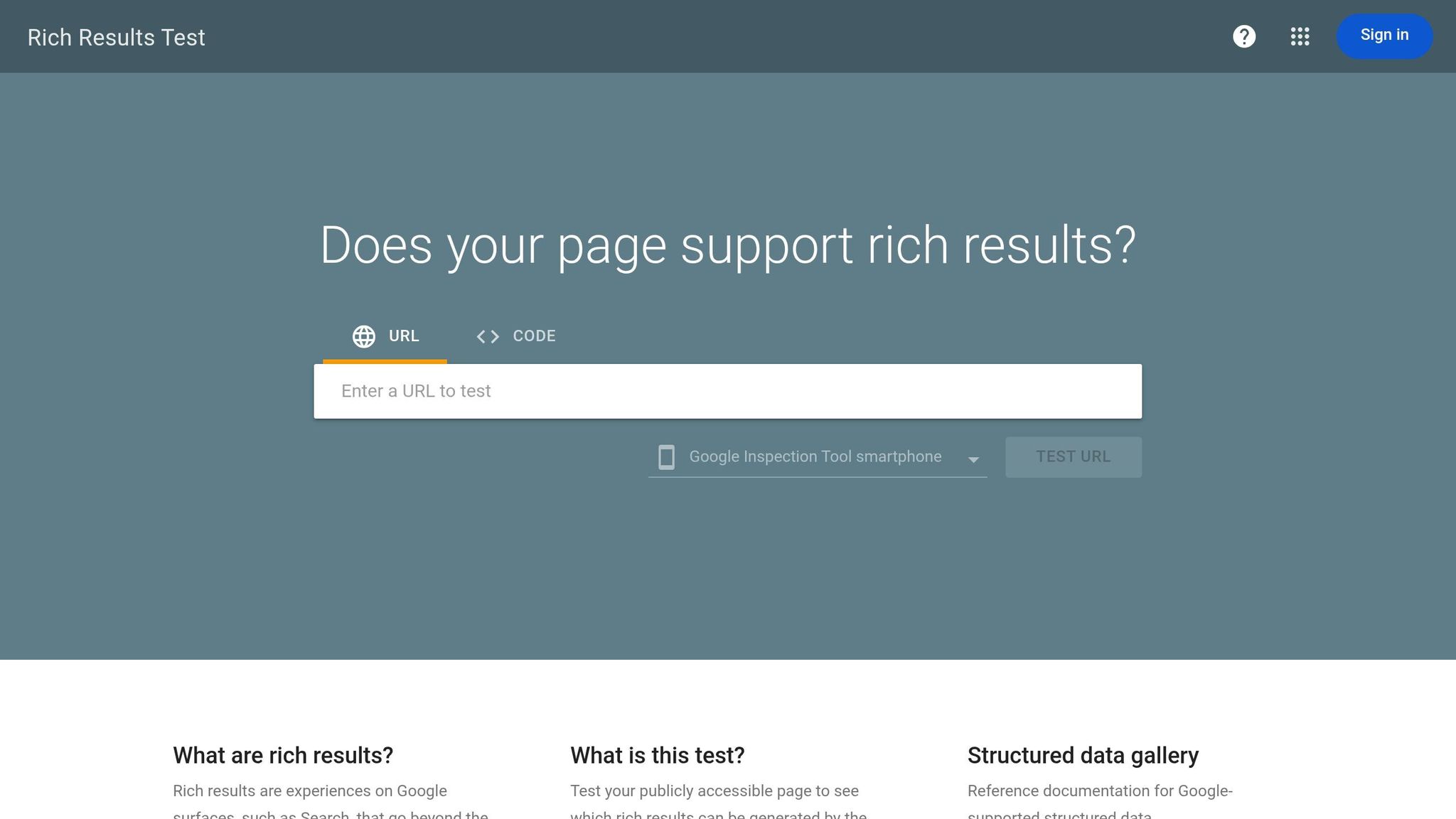
After the Schema.org Validator shows no errors, run the same URL through Google's Rich Results Test. This tool looks at a different issue: is the markup eligible for a rich result in Google Search?
Google adds its own field requirements on top of Schema.org. So a Product page without an offers block may fail to qualify for pricing or availability in search, even if the rest of the markup is written correctly. The Rich Results Test marks these gaps as Errors for blocking issues and Warnings for items that are suggested but not required.
It also renders JavaScript before it checks the page. That's a big deal for React, Vue, or Next.js sites where schema gets injected on the fly. Open the Preview pane and compare what Google sees with what users see on the page.
"A valid rich result only means eligibility, not visibility. Google still applies quality thresholds, spam policies, and site trust signals." - Kanishk Rathod, SEO Specialist
| Tool | Purpose | Scope | Output | Best Use Case |
|---|---|---|---|---|
| Schema.org Validator | Syntax and Schema.org compliance | All Schema.org types | Technical error report (syntax/nesting) | Development and initial debugging |
| Google Rich Results Test | Google SERP eligibility | Google-supported rich result types only | Eligibility status, visual preview, missing required fields | Final validation before publishing |
Fix any errors in the Schema.org Validator first, update the code in your CMS or template, and then run the Rich Results Test again. If you keep seeing the same issue across many URLs, move to Step 3 and audit the template at scale.
sbb-itb-5be333f
Step 3: Audit Rich Snippet Markup at Scale with Crawler Tools
If Step 2 shows the same error on more than one URL, audit the template next. A crawler helps you spot structured data patterns across the site that manual checks often miss.
Extract Schema Types and Missing Properties Across URLs
Review sample URLs from each template - product, post, category, and location - to see whether the problem is isolated or shows up across a whole page type.
Start with the template tied to the affected GSC examples. Then crawl the rest of that template at scale. Use Screaming Frog or Sitebulb to pull JSON-LD with the XPath selector //script[@type='application/ld+json']. Export the crawl to CSV, build a pivot table, and filter for missing properties such as price, aggregateRating, and availability.
Turn on JavaScript rendering so schema added on the client side shows up in the crawl. On very large sites, use disk-based storage so you don't run into RAM limits.
Match Crawler Findings to Search Console Patterns
Begin with the example URLs in GSC's Enhancement reports and figure out which page template they have in common. Then run a focused crawl across the rest of that template to check whether the same issue repeats.
If the same issue shows up across sampled URLs, fix the template code instead of editing individual CMS records.
Step 4: Fix the Code, Validate the Update, and Confirm Recovery
Update Markup at the Source and Align It with Visible Content
Once you know which template is failing from Step 3, fix the schema at the source. Start by finding where that schema comes from - the theme, plugin, Tag Manager, or app layer - before you change anything.
On most CMS-driven sites, this is a template fix, not a page-by-page job. Map CMS or PIM fields straight to the JSON-LD properties that were flagged. For example, connect the product price field to offers.price and the stock status field to offers.availability. If a property is missing, leave it out. Don't publish empty values.
Before you deploy, check two things: format and content alignment.
- Dates must use ISO 8601 format:
YYYY-MM-DD - Prices need a separate currency field, like
"priceCurrency": "USD" - Every structured data value - price, review count, availability - must match exactly what users see on the page
- If both a theme and an SEO plugin like Yoast or Rank Math output the same schema type, turn one off to avoid
@idcollisions
That last point matters a lot. If the markup says one thing and the page shows another, Google can treat it as a policy problem or even issue a manual action.
"Schema only works when it matches reality. Keep data truthful, visible, and current, and machines will trust you more often." - Grégory Stoos, CEO & Founder, AISO Hub
Re-Test, Request Validation, and Monitor Results
After deployment, test the same URL again in both the Schema.org Validator and the Google Rich Results Test before you request validation in Search Console.
Then run a focused spot-check crawl across the affected template. This helps confirm the fix went live across the full set of pages, not just one URL. After that, open the matching enhancement report in Google Search Console and click Validate Fix. That prompts Google to recrawl the affected URLs and begin validation.
Over the next few days, watch the error count. When a template-level fix works, you should see errors drop hard and valid items move up. If the count stalls, that's usually a sign that some URLs sit on another template or have page-level data issues that still need manual review.
Also track rich result impressions and clicks in the GSC Performance report with a Search Appearance filter. Keep a changelog with the deployment date, the template you changed, and the URLs you tested. That makes it much easier to connect GSC movement to the fix you shipped. Keep watching the affected GSC report until the error count drops and valid items increase.
Conclusion: A Clear Process for Fixing Rich Snippet Errors
Once the audit is done, the path is pretty simple for most teams. Rich snippet errors usually follow the same fix flow when you handle them in the right order: find the issue in Google Search Console, confirm it with the Schema.org Validator and Google Rich Results Test, use a crawler to check whether the problem is page-level or template-level, leveraging specialized SEO tools to streamline the audit, fix the source, and then verify recovery.
Start with template-level issues on high-impact pages. That usually gives you the biggest return first.
After deployment, re-test the live URL and request validation in Search Console. Then watch the Enhancement report and impressions until recovery shows up.
The sequence is straightforward: detect, validate, audit at scale, fix at the source, confirm recovery. Stick to that order and diagnosis, repair, and recovery stay aligned.
FAQs
Why do rich results disappear after a site update?
Rich results often disappear after site updates when the structured data stops matching what’s on the live page. In plain English: the markup says one thing, but the page shows another. That mismatch is a common reason Google pulls back rich results.
A few issues show up again and again:
- Required fields get removed
- Templates clash with each other
- JavaScript rendering problems stop Google from seeing the markup the right way
Google can also stop showing rich results when the markup doesn’t match the visible content on the page. And if the page includes misleading information, that can trigger manual actions.
After any site update, check live URLs with the Google Rich Results Test. It’s one of the simplest ways to catch problems before they stick around.
How long does Google take to validate a rich snippet fix?
After you deploy a fix for rich snippet markup, don’t expect validation right away. In Google Search Console, updates can take more than two weeks to show up.
That 48- to 72-hour timeline usually means your team finished the fix. It does not mean Google has already recrawled the pages, processed the new markup, and updated search results.
Should I fix warnings after errors are resolved?
Yes. Even when errors are gone, warnings can still point to weaker data quality. That can limit how detailed your search result features appear and may affect future eligibility.
Fixing warnings makes your structured data more complete and lowers the risk that search engines misread it.