AMP is a tradeoff, not a default win. If I’m deciding whether to use it, I need to answer 3 questions first: Will it fit my page type? Can my team maintain it? Will the speed gain outweigh the extra work?
Here’s the short version:
- AMP works best for publisher-style pages like articles, news, and blogs
- It is usually a poor fit for pages with heavy interactivity, like many product or app flows
- I need to choose between paired AMP and AMP-only before development starts
- Google needs the right canonical and
amphtmltags to find and index AMP pages - AMP pages must pass strict validation, including the 50 KB CSS limit
- I should check both AMP status and indexing in Google Search Console after launch
A key point many teams miss: passing AMP validation does not guarantee indexing. A page can validate and still not rank or get indexed if content, links, or page quality are weak.
If I move forward with AMP, my job is simple: keep the AMP version close to the main page, validate every template, and monitor Search Console hard in the first 30 days.
This guide walks through the parts that matter most:
- scope and page selection
- architecture choice
- template rules
- AMP HTML and component setup
- CSS limits
- canonical linking
- validation
- analytics
- post-launch checks
In other words: this is the setup guide I’d use to launch AMP pages without creating indexation or tracking problems.
📱 How to Enable AMP Accelerated Mobile Pages in Your WordPress Website For Free? Setup Tutorial 🚀
sbb-itb-5be333f
Plan Your AMP Scope and Template Requirements
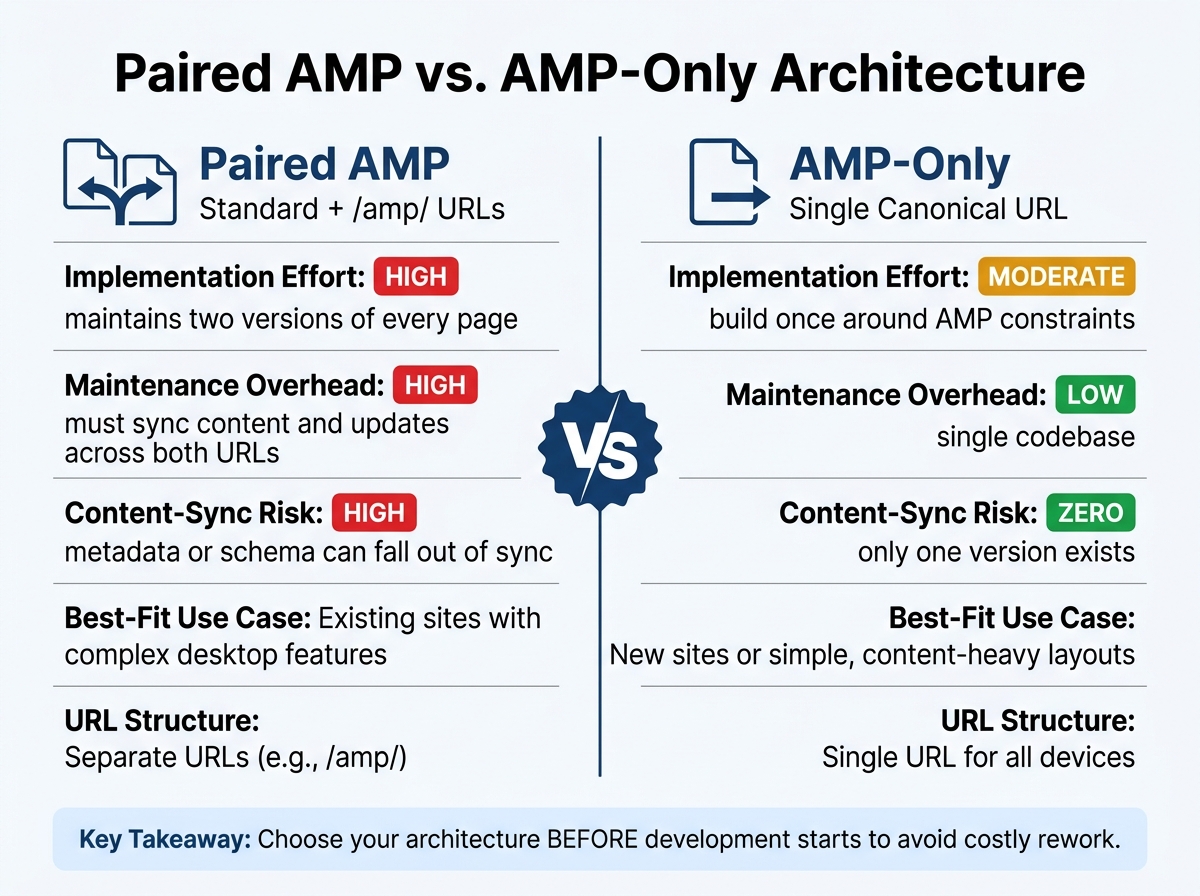
Paired AMP vs. AMP-Only: Which Architecture Is Right for You?
Start with page types that get a lot of mobile traffic, have clear speed problems, and use a repeatable template. In plain terms: pick pages where most visits come from phones and where the current stack is too slow to fix fast.
Skip pages that rely on heavy interactivity. That choice shapes the whole project, because it tells you whether paired AMP or an AMP-only setup makes more sense.
Paired AMP vs. AMP-Only: Which Architecture to Use
Choose your architecture before development starts. That keeps the build cleaner and cuts rework later.
| Feature | Paired AMP (Standard + /amp/) | AMP-Only (Canonical AMP) |
|---|---|---|
| Implementation Effort | High - requires maintaining two versions of every page | Moderate - build once around AMP constraints |
| Maintenance Overhead | High - must sync content and updates across both URLs | Low - single codebase |
| Content-sync risk | High - metadata or schema can fall out of sync | Zero - only one version exists |
| Best-Fit Use Case | Existing sites with complex desktop features | New sites or simple, content-heavy layouts |
| URL Structure | Separate URLs (e.g., /amp/) |
Single URL for all devices |
Paired AMP creates sync risk. AMP-only removes that problem because there's only one version to manage. Once you make the call, write down the template requirements before anyone starts building.
Write an AMP Template Spec Before Development Starts
If you skip the template spec, teams often ship AMP pages that leave out core copy, structured data, or internal links. That's a painful fix later.
Before development begins, document exactly what each template must carry over from the canonical version. At a minimum, confirm that these elements stay the same across both versions:
- Primary body text - Keep the full body copy aligned so Google sees the same page content on both versions.
- Metadata - Titles and meta descriptions should match so search snippets stay consistent.
- Schema markup - Structured data must also appear on the AMP version to support rich result eligibility.
- Internal links - Navigation and in-body links should match so crawl paths and link equity remain intact.
- Image alt text - Use the same descriptive alt text on both versions for accessibility and image search visibility.
- Heading hierarchy - H1 and subheadings should match in the final HTML of both versions.
Use that spec to build one representative template for each page type before you scale. It becomes the checklist for the AMP HTML template.
With scope and requirements locked, move to the AMP HTML template.
Build Valid AMP Templates: HTML, Components, and CSS
Set Up the Required AMP HTML Markup
Use the template spec and top SEO marketing tools as your build checklist. Start with the required AMP shell. If the markup is off, the page fails AMP validation.
Every valid AMP page needs these elements, in this order:
<!doctype html><html amp>or<html ⚡>as the top-level tag<meta charset="utf-8">as the first child of<head>- AMP runtime script:
<script async src="https://cdn.ampproject.org/v0.js"></script> <meta name="viewport" content="width=device-width,minimum-scale=1,initial-scale=1">- AMP boilerplate CSS block, which hides content until the runtime loads
For media, swap standard tags for AMP versions. Use amp-img, amp-video, and amp-iframe instead of plain HTML media tags. These components need explicit width and height values so the browser can reserve space ahead of time and cut layout shifts.
For images, use layout="responsive" or srcset so the right file size loads across screen sizes. And if you add any non-core AMP component - like amp-sidebar or amp-ad - you also need its matching <script> tag in <head>.
Follow AMP CSS Rules and Size Limits
AMP caps custom CSS at 50 KB. Put all custom styles inside a single <style amp-custom> block in <head>. External stylesheets aren't allowed.
This is where a lot of templates get messy. Trim unused rules early. If a behavior depends on JavaScript, swap it for an AMP component like amp-accordion or amp-sidebar. Cutting nonessential CSS now makes validation much simpler later.
AMP Components Reference Table for Template Sections
Use this table as a quick reference when turning template sections from standard HTML into valid AMP markup.
| Component | Purpose | Required Attributes | Typical Placement |
|---|---|---|---|
amp-img |
Replaces <img> for optimized image loading |
src, width, height, layout, alt |
Body content |
amp-video |
Embeds HTML5 video | src, width, height, poster |
Body content |
amp-iframe |
Embeds external content | src, width, height, sandbox |
Body content |
amp-ad |
Serves ads from supported networks | type, width, height, data-ad-client |
Sidebar or between content blocks |
amp-sidebar |
Provides a sliding navigation menu | id, layout="nodisplay" |
Direct child of <body> |
amp-social-share |
Adds social media sharing buttons | type, width, height |
Article header or footer |
Next, add canonical tags, validate the template, and wire up analytics.
Set Up Canonicals, Validate Pages, and Configure Analytics
Add the Correct Canonical and amphtml Tags
With paired AMP, the relationship has to go both ways. The non-AMP page points to the AMP URL with rel="amphtml", and the AMP page points back with rel="canonical".
On your non-AMP page, add this inside <head>:
<link rel="amphtml" href="https://example.com/article/amp/">
On your AMP page, add this inside <head>:
<link rel="canonical" href="https://example.com/article/">
If you're using AMP-only pages, use a self-referencing canonical tag:
<link rel="canonical" href="https://example.com/article/">
Keep the AMP page closely matched to the canonical page. If the two versions drift too far apart, indexing can fail.
Here are the setup mistakes that show up most often, and what they tend to cause:
| Setup Type | Tag on Non-AMP Page | Tag on AMP Page | Indexing Outcome |
|---|---|---|---|
| Correct Paired | <link rel="amphtml" href=".../amp/"> |
<link rel="canonical" href="..."> |
AMP page can be discovered and served. |
| Missing amphtml | None | <link rel="canonical" href="..."> |
Google never discovers the AMP version |
| Missing Canonical | <link rel="amphtml" href=".../amp/"> |
None | Potential duplicate content issue; AMP may not index |
| Self-Canonical on AMP (Paired) | <link rel="amphtml" href=".../amp/"> |
<link rel="canonical" href=".../amp/"> |
Incorrect for paired AMP; Google may ignore the desktop version |
For XML sitemaps, include only canonical non-AMP URLs. Google finds the AMP versions through the rel="amphtml" tags on those pages, so a separate AMP sitemap usually isn't needed. Also check that robots.txt doesn't block /amp/ paths or the CSS and JavaScript files AMP needs for rendering and validation.
Once the discovery setup is in place, validate the rendered AMP HTML with a website audit tool before launch.
Run AMP Validation and Fix Template-Level Errors
AMP validation is pass/fail. If a page fails, it can lose cache eligibility and the speed gains that come with it.
Use this workflow before launch:
- AMP Validator (
validator.ampproject.org): Paste in the HTML to find disallowed tags, missing attributes, and CSS overages. - GSC URL Inspection → Test Live URL: Run this on the AMP URL to check live validation status in Search Console.
After you fix issues, use the Validate Fix button in the GSC AMP Status Report so those URLs get priority for re-crawl. For the first two weeks after launch, check the AMP Status Report every day to catch problems early.
Fix broken canonical and amphtml links first. Then fix robots.txt blocks. After that, remove any noindex tags left behind from staging. Those three issues can stop discovery altogether.
Once validation passes, move to measurement in amp-analytics.
Set Up amp-analytics for Consistent Measurement
Before launch, record your top keywords and landing pages. Then make sure amp-analytics fires the same way every time.
The <amp-analytics> element uses a JSON config block to track user behavior. Keep event names the same as your non-AMP setup so your reports stay comparable.
Use GA4 DebugView or Tag Assistant to confirm tracking fires correctly before launch.
| Analytics Approach | Setup Complexity | Event Support | Reporting Parity |
|---|---|---|---|
| amp-pixel | Low | Basic (Pageviews only) | Poor |
| amp-analytics (GA4) | Moderate | High - clicks, scrolls, custom events | Good; requires aligned JSON config |
| Native Plugin (e.g., WordPress) | Low | Moderate | Variable; depends on plugin maintenance |
| GTM for AMP | High | High | Best; allows aligned naming conventions |
That baseline matters. If AMP validation issues make Google serve the non-AMP version instead, you may see what looks like a shift in GA4 reporting when it's actually a serving change.
Search Console Checks and Final Launch Steps
How to Monitor Indexed AMP Pages in Search Console
Once analytics is live, use Search Console to make sure Google can crawl, index, and validate those same AMP URLs. Check the AMP Status Report for validity and Index Coverage for indexing. Those are not the same thing. A page can pass one and still fail the other.
If AMP errors stop validation, Google will serve the non-AMP version to mobile users. That means you lose the speed lift.
Pay close attention to sudden spikes in errors. In most cases, that points to a template-level break caused by a plugin update or a deployment. If the errors show up only under one path, you're usually dealing with a page-type problem instead. That distinction matters. Template fixes scale. Page-by-page fixes don't.
Use these Search Console patterns to tell template failures apart from indexing problems.
| GSC Pattern | Likely Cause | Priority |
|---|---|---|
| Sudden spike across all AMP URLs | Global template deployment or plugin update | Critical |
| Errors limited to one URL prefix | Page-type specific template error | High |
| "Valid with warnings" | Minor code issues that don't yet block caching | Low |
| "Crawled - currently not indexed" | Quality, authority, or internal linking issues | High |
If your team manages more than one content template, check the AMP Status Report on days 3, 7, 14, and 30 after launch. After week 2, move to a monthly check, with a quarterly technical SEO audit.
Conclusion: AMP Launch Checklist
Before go-live, confirm each item below. After launch, keep Search Console in your regular review cycle so you can catch template breaks early.
- AMP architecture chosen
- Template spec matched to canonical content
- Valid AMP HTML and CSS
- Correct canonical and amphtml tags
- Zero critical validation errors
- amp-analytics firing correctly
- Search Console monitoring scheduled
FAQs
Is AMP worth it for my site?
AMP can make sense if your site is content-heavy - think blogs, publishers, or news sites - and doesn’t rely on heavy custom JavaScript, complex on-page interactions, or rich ecommerce features.
The main upside is faster mobile load times. That said, AMP comes with limits around design and site features, and it’s not used as much now that Google puts more weight on Core Web Vitals.
If you decide to test it, compare AMP vs. non-AMP on your main page templates first. Then check that your AMP pages pass validation and are getting indexed in Google Search Console.
Should I use paired AMP or AMP-only?
In 2026, you should generally avoid implementing AMP. Google no longer requires AMP for mobile features like Top Stories. Instead, it puts the focus on Core Web Vitals.
AMP also adds extra work. If you maintain paired pages or run an AMP-only setup, you now have more technical overhead to deal with, including validation errors and duplicate content management.
For most websites, the better move is simple: optimize your standard responsive pages for speed and Core Web Vitals.
Why would a valid AMP page still not get indexed?
A valid AMP page can still miss indexing if the setup has technical problems. Common issues include broken links between the canonical page and the AMP version, pages blocked in robots.txt, or a noindex tag.
Google may also choose the standard mobile page instead if the AMP page has duplicate content, thin content, or content that's hard to crawl. To see what’s going wrong, check the AMP Status Report in Google Search Console.