Most third-party script problems come from seven groups: chat, ads, tag managers, A/B testing tools, consent banners, video embeds, and social widgets. If I had to cut this down to one rule, it would be this: measure each provider, tie it to LCP, INP, or CLS, then remove, limit, delay, or keep it based on proof.
Here’s the short version:
- Chat widgets often hurt INP by adding long tasks and extra browser work.
- Ads and affiliate scripts can hurt all three - LCP, INP, and CLS.
- Tag managers often make other script problems worse by firing many tags site-wide.
- A/B testing tools often hurt LCP with page hiding and can also cause CLS.
- Consent tools can shift the page on first load and add work after consent.
- Video embeds often load too much before anyone clicks play.
- Social embeds often cause CLS because their final size shows up late.
A page only passes Core Web Vitals if it meets all three field thresholds at the 75th percentile: LCP at 2.5 seconds or less, INP at 200 ms or less, and CLS at 0.1 or less. So one bad script can be enough to put the whole page in the red.
What I’d do first:
- Check PageSpeed Insights and Google Search Console for field data.
- Use Chrome DevTools to find long tasks, layout shifts, and request chains.
- Audit by provider, not just by file name.
- Test one vendor at a time in staging.
- Keep only scripts with a clear job, an owner, and a measured payoff.
If a script loads before the main content, blocks the browser, or injects content without reserved space, it’s a top suspect. That is the core idea behind the full article.
How To Reduce The Impact of Third Party Code & Javascript With Google Tag Manager
sbb-itb-5be333f
Measure Third-Party Impact Before You Cut Anything
Measure first. Then decide which provider type deserves a closer look.
A script that looks heavy in a waterfall may barely affect people using the site. On the flip side, a small tag can still tie up the main thread on actual devices.
Use Field Data and Lab Traces Together
Use field data to spot the issue, and lab traces to find the reason behind it.
Start with PageSpeed Insights and Google Search Console to see how actual visitors experience LCP, INP, and CLS across devices and network conditions. Search Console groups similar URLs over 28 days, which helps you isolate template-level issues. CrUX reports field data, while PageSpeed Insights combines available field data with a separate lab report.
Once the symptom is clear, connect it to the provider behind it. Open Chrome DevTools’ Performance panel, record a page load, and inspect main-thread work, long tasks, scripting time, and layout shifts. That’s where the root cause shows up. You can see the exact task or shift behind the field-data symptom.
Lab results don’t replace field data. They help explain it.
Build a Provider-Level Script Inventory
Audit by provider, not by filename.
One vendor can trigger many requests, iframes, and follow-up loads, so looking at a single file won’t show the full cost. Attribute every external request to its provider - advertising, analytics, chat, consent, video, or social.
For each provider, track:
- Origins
- Load path
- Affected templates
- Transfer size
- Main-thread time
- Long-task count
- Layout shifts
In DevTools, the Network panel’s Initiator column shows the full request chain, so scripts hidden behind a tag manager can still be tied back to the right vendor.
Group providers by function now. That makes it much easier to compare chat, ads, tag managers, A/B tools, consent tools, video, and social embeds in the next step. This inventory shows which script types need the most attention.
Test One Provider at a Time in Staging
Once the inventory is ready, disable one provider at a time in a staging environment and measure again.
Keep the test setup the same each time: URL, device, network, consent, cache, and viewport. You can also use WebPageTest to simulate these specific conditions across different browsers. Then compare LCP, INP, CLS, total blocking time, request count, and main-thread execution time before and after.
Also track when the provider runs - site-wide on every page load, only on certain templates, or only after a user opens a chat window or plays a video. That timing matters. A script that runs only after interaction carries a different level of risk than one that executes during startup.
Re-enable each provider after testing so your results don’t get blurred by cumulative removals. Use the before-and-after data to decide whether to remove, restrict, delay, or keep the script. If the gain shows up again across repeated runs, you have a solid case for action - and a clearer way to rank the script types most likely to hurt Core Web Vitals.
Which Script Types Most Often Hurt Core Web Vitals
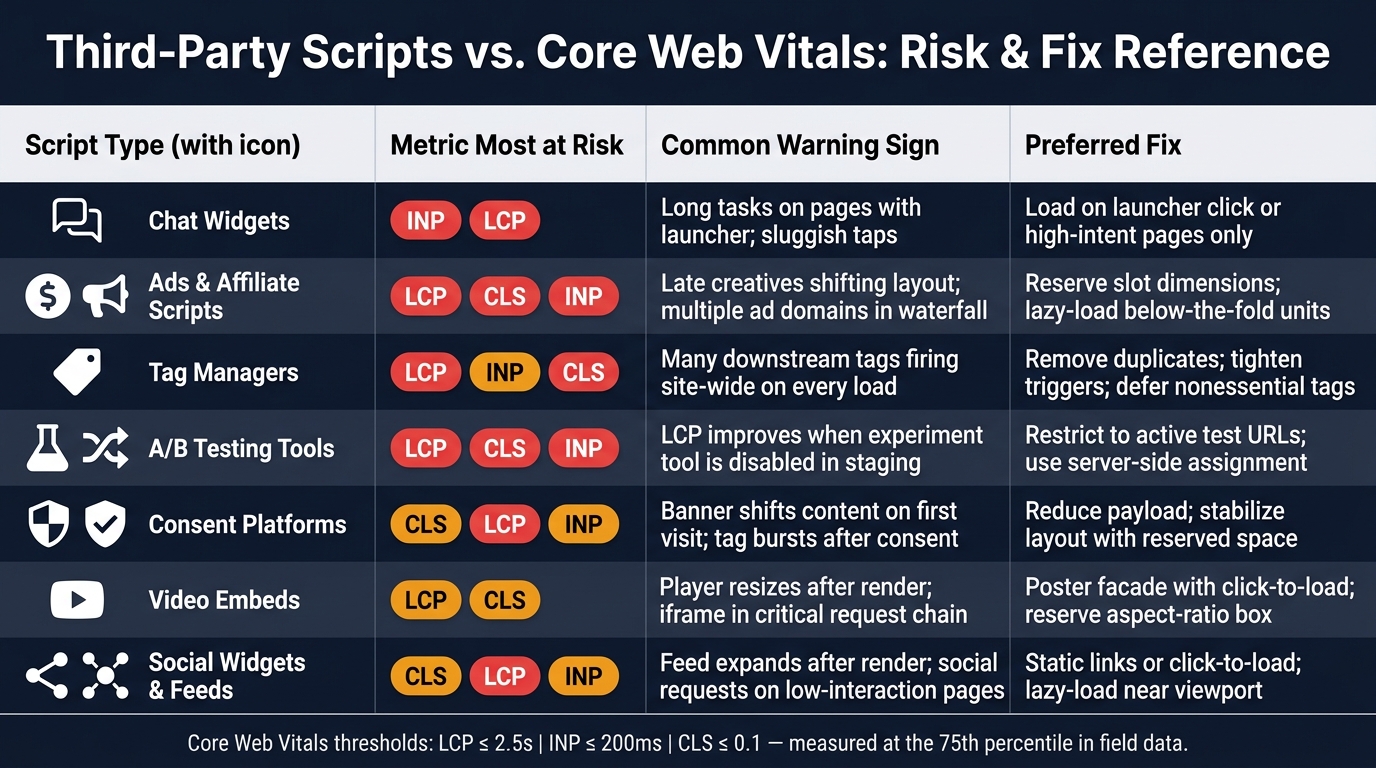
Third-Party Scripts vs. Core Web Vitals: Risk & Fix Reference
Next, map the failure patterns by script category.
Chat Widgets, Ads, and Tag Managers
Chat widgets usually hurt INP first. They often load large libraries, attach global listeners, and keep polling for availability while people are trying to use the page. Then, when someone opens or closes the widget, it can fire long tasks and a burst of DOM changes. The result is simple: the page feels slow right when the user tries to do something. The clearest signs are long tasks on pages with the launcher and a sharp INP jump after the widget opens. Keep the widget only if the business payoff - qualified leads, customer support, or a measured service need - is greater than the measured cost.
Ad and affiliate scripts can hit LCP, INP, and CLS at the same time. Bidder requests compete with critical resources and can push LCP past the 2.5-second threshold. Creatives that appear after layout - especially when slot dimensions were not reserved in advance - cause CLS that can be tough to tie back to one ad call. Refresh logic and viewability timers add main-thread work, which pushes up INP. If several ad domains fire before the main content loads, that's a strong signal to dig deeper. Keep a placement only if its revenue or affiliate conversions are worth the added LCP, INP, and CLS cost.
Tag managers are a different kind of problem. The container itself may be small, but it can trigger analytics, pixels, chat, remarketing, and personalization tools all at once. And many of those fire site-wide on every page load, whether that page needs them or not. That's why tag managers often make problems from other script types worse.
A/B Testing Tools, Consent Platforms, and Video Embeds
A/B testing tools often rely on page-hiding, sometimes called anti-flicker, so users do not see the original page before the test version loads. That directly delays LCP. If the variant changes text length, image size, or component order after the page has already rendered, it also creates CLS. On top of that, repeated DOM mutations during experiment activation add INP cost. If turning the tool off in staging improves LCP, it is loading too early or hiding the page for too long. Both scripts can slow startup before the user sees anything useful.
Consent platforms need to load early so they can block regulated tags, but that early load still has a cost. A banner that appears without reserved space causes a layout shift, and a burst of tags after consent can hurt INP.
Video embeds follow a similar pattern. They often load player code, ad parts, and metadata before the visitor even presses play. They also shift layout unless space is reserved ahead of time. A lighter approach works better: use a static poster image with a set aspect ratio and a play button, then load the full player only after the user interacts. Delay both where possible, and keep them only when the business case is clear.
Social Widgets and Embedded Feeds
Social widgets are often loaded site-wide even though few people use them. Their most common failure mode is CLS. Feeds and post embeds usually do not know their final height until the content finishes loading, so they expand after render and push nearby content downward. Heavy embed code and iframe startup also compete with main content for bandwidth and main-thread time, which can hurt LCP and INP on pages where the embed sits above the fold.
One clear warning sign is social requests appearing on pages with little or no user interaction. Before leaving a social embed in place, measure actual clicks, shares, referral traffic, and assisted conversions by page template. Where possible, replace site-wide widgets with plain links and use static previews with set dimensions. Keep them only if the business value is higher than the measured cost.
Use the table below to match each script type to its most likely failure mode and fastest fix.
| Script type | Metric most at risk | Common warning sign |
|---|---|---|
| Chat widgets | INP, LCP | Long tasks on pages with the launcher; sluggish taps |
| Ad & affiliate scripts | LCP, CLS, INP | Late creatives shifting layout; multiple ad domains in waterfall |
| Tag managers | LCP, INP, CLS | Many downstream tags firing site-wide on every load |
| A/B testing tools | LCP, CLS, INP | LCP improves when the experiment tool is disabled in staging |
| Consent platforms | CLS, LCP, INP | Banner shifts content on first visit; tag bursts after consent |
| Video embeds | LCP, CLS | Player resizes after render; iframe in critical request chain |
| Social widgets & feeds | CLS, LCP, INP | Feed expands after render; social requests on low-interaction pages |
What to Do With Each Script: Remove, Restrict, Delay, or Keep
Use the lightest fix that still protects the page’s job and business impact.
The Lowest-Risk Fixes by Script Category
Start with the metric that’s taking the hit. Then pick the least disruptive fix.
For chat, load it on click first. If it proves its worth, expand it to high-intent pages like pricing or contact. That keeps the tool available without making every page pay the cost.
For ads, reserve slot dimensions so the page doesn’t jump around and trigger CLS. Lazy-load below-the-fold units, and cut refresh frequency when yield data shows you can do that without hurting revenue too much.
For tag managers, review triggers closely. Remove what you don’t need, and defer nonessential tags until after load. A lot of pages carry extra baggage here for no good reason.
For A/B testing tools, keep them limited to active test URLs. Remove finished variations fast. If the test changes above-the-fold content, use server-side assignment when possible so the page doesn’t stall or flicker.
For consent platforms, load only the minimum code needed to show the notice and enforce blocking. Use a stable overlay that doesn’t push content down after the page starts rendering.
For video embeds, swap the full player for a poster facade. Then load the player on click. Reserve the aspect-ratio box ahead of time so the layout stays put.
For social widgets, static links or server-rendered previews are often enough. Use click-to-load only when an interactive embed is actually needed.
When a Script Earns Its Place
Keep a script only if it does one of three things: meets a legal need, supports the core purpose of the page, or drives a measured business result that is worth the performance cost.
Script Risk and Fix Reference Table
Match each provider to the lightest intervention that protects the metric it puts at risk.
| Script type | Primary metric risk | Observable symptom | Preferred intervention | Business justification |
|---|---|---|---|---|
| Chat widget | INP and long tasks | Slow first click; persistent CPU activity | Load on launcher click or high-intent pages only | Qualified conversations, assisted conversions, or support savings |
| Ads | CLS and LCP; sometimes INP | Content jumps; slow ad slots | Reserve dimensions; lazy-load below-the-fold units; reduce refresh | Revenue-positive placements with measured yield |
| Tag manager | LCP and INP | Many requests; long tasks | Remove duplicates; tighten triggers; defer nonessential tags | Essential measurement and operational tags only |
| A/B testing tool | LCP, INP, and visual stability | Delayed render; page stays hidden too long | Restrict to active tests; use server-side or limited-scope testing | Active experiments tied to decisions and measurable uplift |
| Consent platform | LCP and CLS | Heavy banner; shifting overlay | Reduce payload; stabilize layout; conditionally load vendors | Required for privacy and legal compliance |
| Video embed | LCP and INP | Player loads before intent; many iframe requests | Poster facade with click-to-load; reserve aspect ratio | Video is the page's primary intent |
| Social embed/feed | LCP, INP, and CLS | Iframe activity; shifting content | Static links or click-to-load embed; lazy-load near viewport | Embed materially supports the page |
Conclusion: Keep the Scripts That Prove Their Value
A script turns into a problem when it loads too soon, runs on pages that don’t need it, or pushes content around because no space was set aside for it. That’s why the earlier provider-by-provider audit matters. Measure first, isolate the provider, use the lightest loading setup that still works, and then check the outcome with real-user field data. Lighthouse helps, but it isn’t enough on its own. You need to verify LCP, INP, and CLS in field data.
Key Points to Take Away
Once the data is clear, the decision gets pretty simple.
Audit by provider, not by script type. Track where each script loads, who owns it, and what measurable job it serves. If nobody can answer those questions, it should be considered for removal.
Fix scripts that delay LCP or create long tasks of 50 ms or more first. Also move up any script that runs across the whole site even though it’s only needed on a few templates. After each change, check performance again and review business impact before moving to the next fix.
Reserve space for injected content - ads, embeds, banners, and similar elements. Setting dimensions before the request is one of the lowest-effort ways to protect CLS. Also, avoid site-wide default loading for scripts that only matter on certain pages or after a user action.
The aim is not to get to zero third-party scripts. The aim is to keep a controlled inventory with clear ownership, a defined purpose, and a measured cost that can be justified. Set review dates, because vendor setups change, and a script that looked fine at launch can quietly turn into a problem after an update.
Keep the scripts that prove their value. Restrict or remove the ones that only add load.
FAQs
How do I know which third-party script is causing the biggest Core Web Vitals issue?
Start with Google Search Console’s Core Web Vitals report. It shows which URLs or page templates slipped, so you know where to look first.
Then open Chrome DevTools Performance or Lighthouse and check for long main-thread tasks tied to third-party domains. That’s usually where the slowdown shows up.
In DevTools, block each third-party domain one at a time and reload the page. This gives you a clean before-and-after view of which script moves LCP, INP, or CLS the most.
A few usual suspects show up again and again:
- Tag manager bloat
- Heavy widgets that stack on top of each other
- Chat tools
- Session replay and heatmap scripts
If two or three of these run at once, the page can get bogged down fast.
Which scripts should I fix first if my page fails only one metric?
If your page misses just one metric, go straight to the scripts most likely causing that problem.
For INP or TBT, start with heavy widgets like live chat, session replay, and A/B testing scripts. Those are often the biggest culprits.
For LCP, look at unused libraries, bloated tag manager containers, and render-blocking scripts that should be deferred. In plain English: trim the JavaScript that gets in the way of the page showing its main content.
Use Chrome DevTools to spot scripts that block the main thread for more than 250 ms. Then remove anything redundant or unused.
When is a third-party script worth keeping despite the performance cost?
A third-party script is worth keeping when it delivers clear business value that outweighs the performance hit. In plain terms, it should support something the business depends on - like critical analytics, payment processing, or core site features tied to conversions or user engagement.
Before you keep it, document three things: its purpose, who asked for it, and what it costs in performance. That simple step cuts through a lot of guesswork.
If the script stays, trim the damage where you can. Use lazy loading, deferred execution, or a server-side setup to reduce its impact.